
How to Add an AI Bot to Slack: Claude-Powered Team Assistant
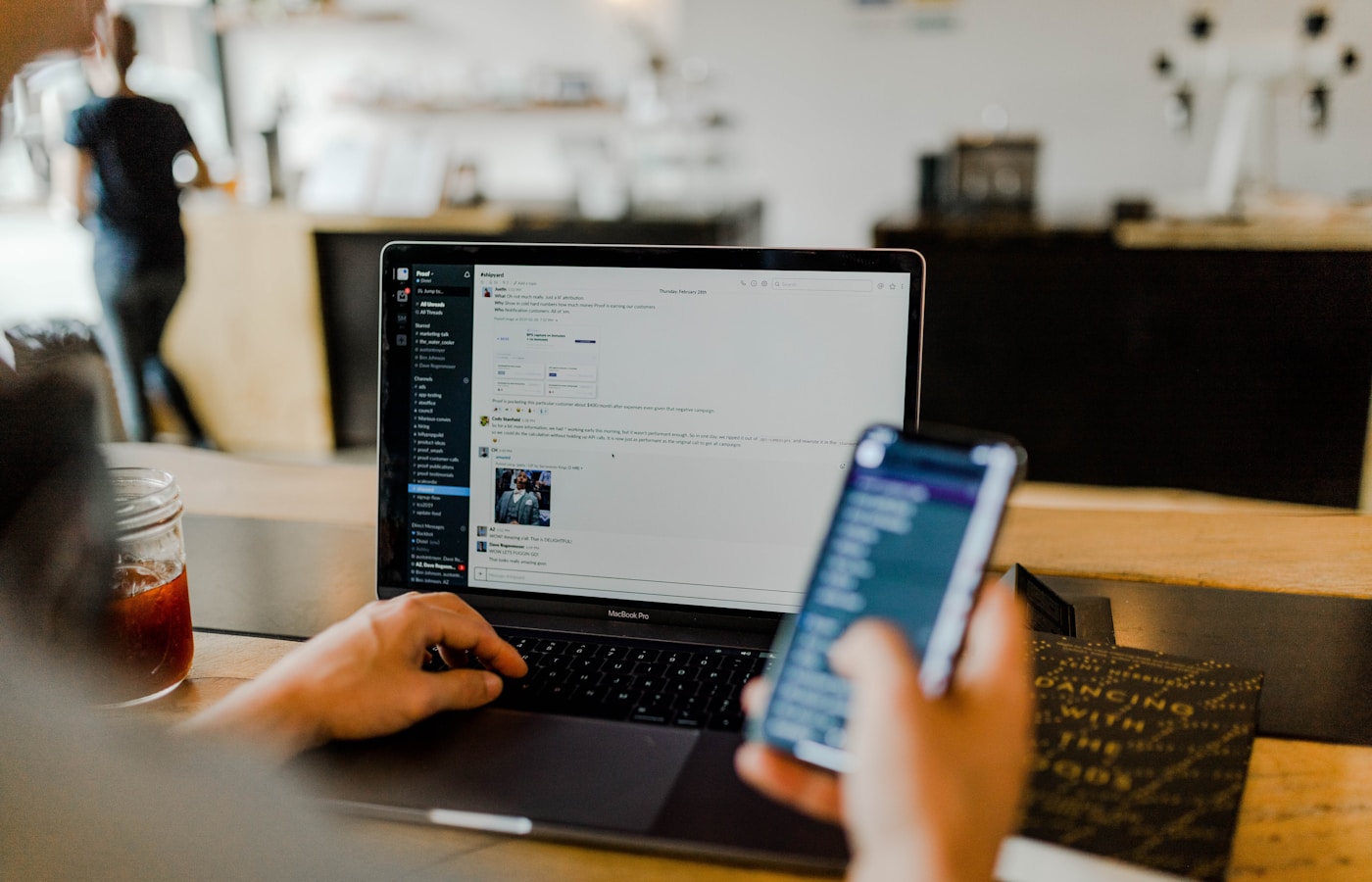
Every team has questions that eat up time. "Where's that document?" "What did we decide in the last meeting?" "How do I use this internal tool?" An AI bot in Slack can answer these instantly, freeing your team to focus on real work.
Unlike Slack's built-in AI features, a custom bot powered by Claude gives you full control: custom knowledge, specific behaviors, and integration with your existing systems.
This guide shows you how to set up a Claude-powered AI assistant in your Slack workspace.
Why Add AI to Slack?
 AI assistants transform how teams find and share information
What a Slack AI bot can do:
- Answer questions using company knowledge
- Summarize long threads and channels
- Draft responses to common questions
- Search across channels and documents
- Translate between languages
- Onboard new team members faster
Real impact:
- Reduce repetitive questions to specific people
- Faster information discovery
- Consistent answers to common questions
- Available 24/7, no waiting for colleagues
The best Slack bots feel like a helpful team member who knows everything and never gets tired.
Architecture Overview
 How the AI connects to your Slack workspace
Components:
- Slack App - The bot presence in your workspace
- OpenClaw or custom backend - Processes messages with Claude
- Claude API - Provides AI responses
- Knowledge base (optional) - Custom documents and context
Message flow:
- User mentions bot or DMs it
- Slack sends message to your backend
- Backend sends to Claude with context
- Claude response sent back to Slack
Step 1: Create Your Slack App
 Setting up your Slack app
Create the app:
- Go to api.slack.com/apps
- Click "Create New App"
- Choose "From scratch"
- Name it (e.g., "Claude Assistant")
- Select your workspace
Configure bot permissions:
Navigate to OAuth & Permissions → Scopes → Bot Token Scopes:
Required scopes:
- app_mentions:read (respond to mentions)
- chat:write (send messages)
- channels:history (read public channels)
- groups:history (read private channels you're invited to)
- im:history (read DMs)
- users:read (user info for context)
Enable Events:
Navigate to Event Subscriptions:
- Toggle "Enable Events" on
- Add Request URL (your backend endpoint)
- Subscribe to bot events:
app_mention,message.im
Install to workspace:
- OAuth & Permissions → Install to Workspace
- Authorize the permissions
- Copy the Bot User OAuth Token (starts with
xoxb-)
Step 2: Connect to OpenClaw
 Connecting OpenClaw to your Slack workspace
OpenClaw handles Slack integration natively:
Add Slack channel:
openclaw config set slack.botToken "xoxb-your-token"
openclaw config set slack.signingSecret "your-signing-secret"
openclaw config set slack.enabled true

openclaw gateway restart
Configure behavior:
// openclaw.json
{
  "channels": {
    "slack": {
      "enabled": true,
      "botToken": "xoxb-...",
      "signingSecret": "...",
      "responseMode": "thread",  // Reply in threads
      "allowedChannels": ["*"],  // Or specific channel IDs
      "systemPrompt": "You are a helpful team assistant."
    }
  }
}
Test the connection:
openclaw channels status
You should see Slack listed as connected. Now mention your bot in Slack and watch it respond.
Step 3: Add Custom Knowledge
 Adding company-specific knowledge
A generic AI is helpful, but a bot with company knowledge is transformative.
Option 1: System prompt context
Add key information to your system prompt covering: company products with common questions, internal processes (PTO, expenses) with links, and team routing (which channels/people handle what topics). Include guidance to refer users to official channels for approvals.
Option 2: File-based knowledge
Add documents to OpenClaw's workspace:
~/.openclaw/
├── knowledge/
│   ├── onboarding.md
│   ├── product-faq.md
│   ├── engineering-standards.md
│   └── team-directory.md
Reference in system prompt:
You have access to company documentation in the knowledge/ folder.
Search these files to answer questions about company policies and processes.
Option 3: Retrieval augmented generation (RAG)
For larger knowledge bases, implement proper RAG:
- Index documents with embeddings
- Search relevant content for each query
- Include in context for responses
Step 4: Configure Team Workflows
Automating team collaboration
Thread summaries:
@claude-bot summarize this thread
Configure the bot to recognize summary requests and provide concise overviews.
Scheduled updates:
openclaw cron add "standup-reminder" "0 9 * * 1-5" \
  "Post to #engineering: Time for daily standup!
   What did you do yesterday? What are you doing today? Any blockers?"
Channel monitoring:
openclaw cron add "support-check" "0 */2 * * *" \
  "Check #support for questions without responses in the last 2 hours.
   If found, suggest answers or escalate to relevant team members."
Auto-responses:
Configure patterns for common questions:
- "Where is X?" → Link to documentation
- "How do I Y?" → Step-by-step instructions
- "Who handles Z?" → Point to right person/channel
Step 5: Security and Access Control
Protect sensitive information appropriately
Channel restrictions:
{
  "channels": {
    "slack": {
      "allowedChannels": ["C123ABC", "C456DEF"],
      "blockedChannels": ["C789GHI"]
    }
  }
}
User permissions:
{
  "channels": {
    "slack": {
      "allowedUsers": ["U123", "U456"],
      "adminUsers": ["U789"]
    }
  }
}
Sensitive topics:
Add to system prompt:
Never discuss or reveal:
- Salary information
- Personal performance reviews
- Confidential business strategy
- Individual user data

For these topics, direct users to HR or appropriate channels.
Best Practices
 Keys to successful Slack bot deployment
Naming and personality:
- Give it a memorable name
- Define consistent tone (professional, friendly, etc.)
- Make it clear it's AI, not human
Response quality:
- Keep responses concise for chat context
- Use formatting (lists, bold) appropriately
- Offer to elaborate when relevant
Escalation:
- Know when to hand off to humans
- Point to the right channels/people
- Don't pretend to know what it doesn't
Continuous improvement:
- Review bot interactions weekly
- Update knowledge base regularly
- Add common questions to FAQ
Conclusion
 Empowering your team with AI
A well-configured Slack AI bot becomes an invaluable team resource. It handles repetitive questions, provides instant access to information, and frees your team to focus on work that matters.
Start simple—basic Q&A with some company context. Then expand based on what your team actually uses. The best bot configurations evolve from real usage patterns.
Get started:
- OpenClaw setup for the backend
- Discord bot setup for similar process
- Automation guide for scheduled tasks
Your team deserves better than repeating the same answers. Give them an AI assistant.
FAQ
 Common questions about Slack AI bots
Is this different from Slack's built-in AI?
Yes. Slack's AI uses their models with their features. A custom bot using Claude gives you control over behavior, knowledge, and integrations.
Can the bot access private channels?
Only if explicitly invited. It respects Slack's permission model.
How do I prevent sensitive data leakage?
Restrict channel access, configure topic blockers in system prompt, and review conversation logs periodically.
What about API costs?
Depends on usage. A team of 20 with moderate usage might cost $20-50/month in Claude API fees. Heavy usage scales up proportionally.
Can multiple workspaces share one bot?
Yes, with enterprise setup. Each workspace needs its own app installation, but they can share the same backend.
More Articles
The Ultimate OpenClaw AWS Setup Guide

The definitive guide to setting up OpenClaw on AWS. Includes spot instance configuration, cost optimization, and step-by-step instructions.
Building AI Workflows with Tool Chaining in OpenClaw
Master the art of chaining tools and function calls to build powerful multi-step AI automation workflows—from data extraction to content generation and deployment.
Cost Optimization Guide for Self-Hosted AI Assistants: Run Claude on a Budget
Practical strategies to reduce API costs for self-hosted AI assistants—smart model routing, caching, batching, and OpenClaw-specific optimizations to run Claude affordably.