
AI Home Automation: Smart Home Control with Claude and Home Assistant

Smart homes have evolved beyond simple voice commands. With AI integration, your home can understand context, learn patterns, and make intelligent decisions—not just toggle switches on demand.
Imagine asking "make it cozy" and your home dims the lights, adjusts the thermostat, and starts your favorite playlist. Or saying "I'm heading to bed" and having it lock doors, turn off everything downstairs, and set your bedroom to the perfect sleep temperature.
This guide shows you how to connect AI assistants like Claude to your smart home, creating truly intelligent automation.
Why AI + Home Automation?
 AI transforms device control into intelligent home management
Traditional smart home automation is powerful but limited:
Traditional automation:
- "Turn on kitchen lights" → Lights on
- "Set thermostat to 72" → Temperature set
- Rigid rules: "At sunset, turn on porch light"
AI-powered automation:
- "It's too bright in here" → AI adjusts multiple lights based on context
- "I'm working from home today" → Adjusts schedule, temperature, lighting for work mode
- "What's using the most energy?" → Analysis and recommendations
The difference is understanding intent rather than just commands. AI can interpret natural language, consider context, and orchestrate multiple devices to achieve your goal.
Architecture Overview
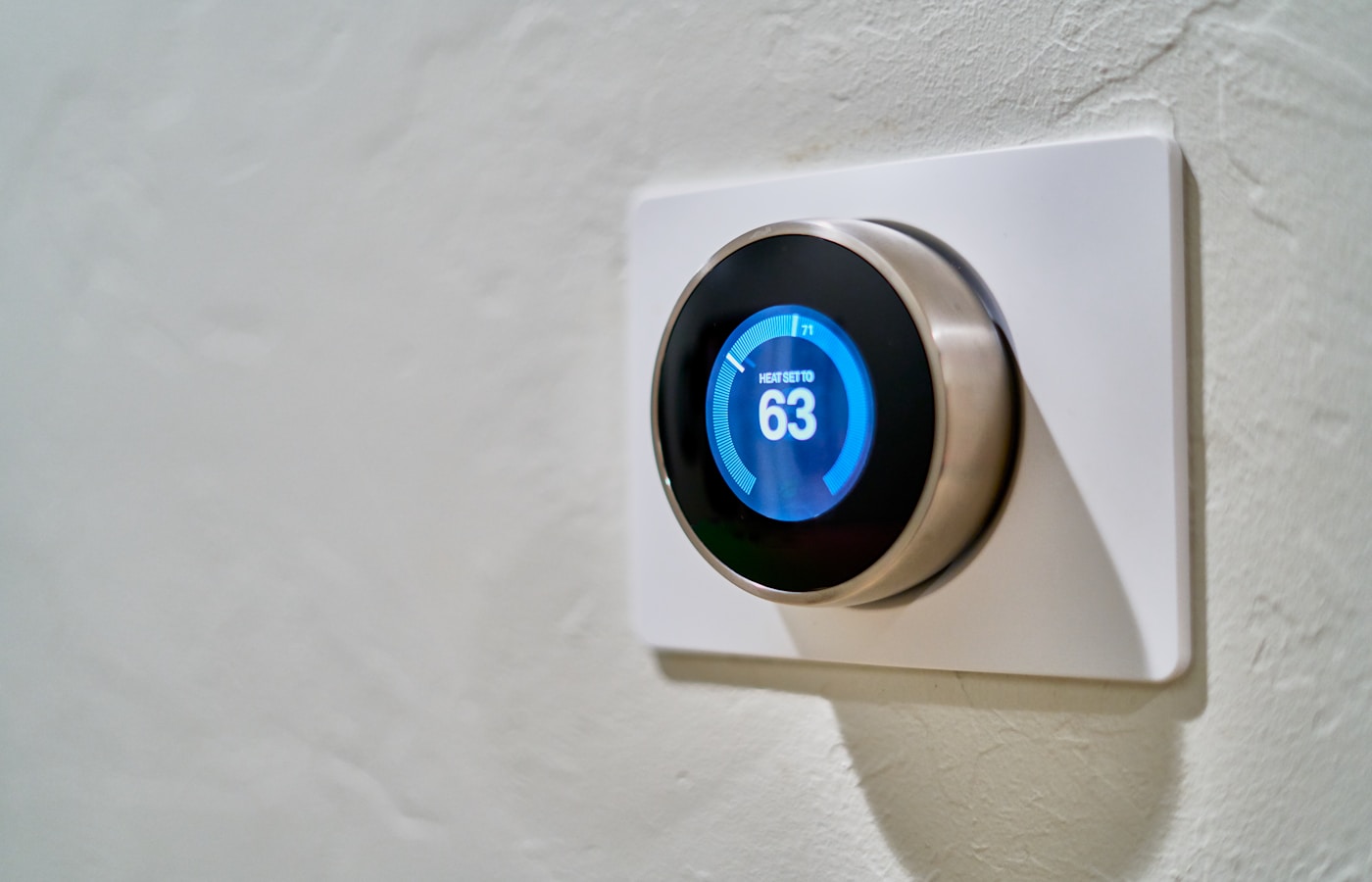 How AI assistants connect to your smart home
A typical AI-integrated smart home has three layers:
Layer 1: Smart Home Hub
- Home Assistant (recommended)
- SmartThings, Hubitat, or similar
- Handles device communication and basic automation
Layer 2: AI Assistant
- Claude, GPT, or local models via Ollama
- Processes natural language
- Makes intelligent decisions
Layer 3: Interface
- Voice (via Whisper or cloud services)
- Messaging (Telegram, Discord via OpenClaw)
- Web dashboard
The key insight: Home Assistant handles the "how" (device control), AI handles the "what" (understanding your intent).
Step 1: Set Up Home Assistant
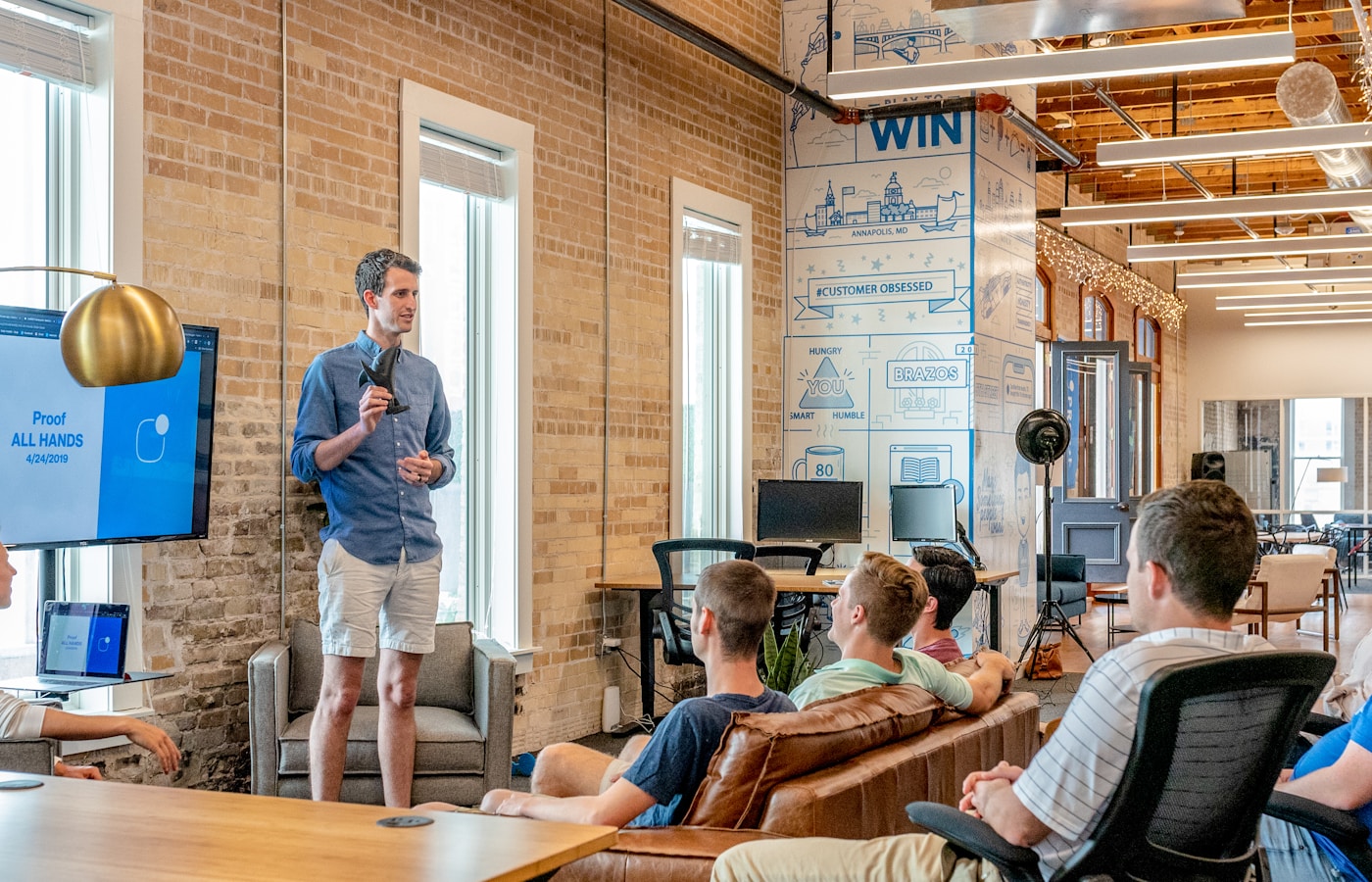 Home Assistant is the foundation of smart home automation
Home Assistant provides the foundation for AI integration
Home Assistant is the foundation of smart home automation
Home Assistant provides the foundation for AI integration
If you're not already running Home Assistant, here's the quick setup:
Hardware options:
- Raspberry Pi 4 (4GB+ recommended)
- Mini PC or NUC
- Docker on existing server
- Home Assistant Yellow (dedicated hardware)
Installation:
docker run -d \
  --name homeassistant \
  --privileged \
  --restart=unless-stopped \
  -e TZ=YOUR_TIMEZONE \
  -v /PATH/TO/CONFIG:/config \
  -v /run/dbus:/run/dbus:ro \
  --network=host \
  ghcr.io/home-assistant/home-assistant:stable
Access at http://YOUR_IP:8123 and complete the onboarding wizard.
Essential integrations:
- Your smart devices (Philips Hue, Z-Wave, Zigbee, etc.)
- Mobile app for presence detection
- Weather integration for context
Home Assistant's power comes from its extensive integration library. Most smart devices work out of the box.
Step 2: Add Local AI with Ollama
 Run AI models locally for privacy and speed with Ollama
Home Assistant now supports AI conversation agents. For privacy-focused users, Ollama provides local AI without cloud dependencies.
Install Ollama:
curl -fsSL https://ollama.ai/install.sh | sh
ollama pull llama3
Add to Home Assistant:
- Go to Settings → Devices & Services
- Add Integration → Search "Ollama"
- Enter Ollama server URL:
http://localhost:11434 - Select your model (llama3 recommended)
Configure as conversation agent:
conversation:
  intents:
    - intent: HomeAssistant
Now you can ask your AI about your home's state, and it will have full context of your devices.
Current limitations:
- Ollama can query state but can't yet execute actions directly
- Action execution requires cloud AI (Google/OpenAI) currently
- Home Assistant is actively developing local action support
Step 3: Connect OpenClaw for Remote AI Access
 Access your smart home AI from anywhere
OpenClaw bridges the gap between AI assistants and your smart home, accessible from any messaging platform.
Set up Home Assistant in OpenClaw:
openclaw config set tools.homeassistant.enabled true
openclaw config set tools.homeassistant.url "http://homeassistant.local:8123"
openclaw config set tools.homeassistant.token "your-long-lived-access-token"
Get a Home Assistant token:
- Profile → Long-Lived Access Tokens
- Create Token
- Copy and store securely
Example interactions via Telegram:
You: Is anyone home?
AI: Based on your presence sensors, no one is currently home.
    All phones are showing as away.

You: Turn off everything
AI: I'll turn off all lights and switches. Should I also
    set the thermostat to away mode?

You: Yes, and lock the front door
AI: Done. All lights off, thermostat set to away (65°F),
    front door locked. I'll notify you if any motion is detected.
The AI understands context and can coordinate multiple actions intelligently.
Step 4: Create Smart Automation Scenes
 Create intelligent automation routines
Create Home Assistant scenes that represent states you commonly want:
Scene examples:
- name: Movie Night
  entities:
    light.living_room:
      state: on
      brightness: 30
    light.kitchen:
      state: off
    media_player.tv:
      state: on
    cover.living_room_blinds:
      state: closed

- name: Work From Home
  entities:
    light.office:
      state: on
      brightness: 100
      color_temp: 250  # Daylight
    climate.thermostat:
      temperature: 70
    switch.do_not_disturb:
      state: on

- name: Good Night
  entities:
    light.all_lights:
      state: off
    lock.front_door:
      state: locked
    alarm_control_panel.home:
      state: armed_home
    climate.thermostat:
      temperature: 68
With AI, you can trigger these naturally: "It's movie time," "I'm starting work," or "I'm going to sleep."
Step 5: Voice Control Options
 Add natural language voice control
Multiple options for voice control:
Local voice (recommended for privacy):
- Whisper for speech-to-text
- Piper for text-to-speech
- Runs entirely on your network
stt:
  - platform: whisper

tts:
  - platform: piper
    voice: en_US-lessac-medium
Cloud voice options:
- Google Assistant (via Home Assistant Cloud)
- Amazon Alexa (via Nabu Casa)
- Apple HomeKit
Voice satellites:
- ESP32-based devices with microphones
- Old Android phones as voice terminals
- Dedicated hardware like Wyoming satellites
For most users, the local Whisper + Piper combination offers good quality without cloud dependencies.
Real-World Usage Examples
 Practical applications of AI home automation
Morning routine:
"Good morning" triggers:
- Gradually increase bedroom lights
- Start coffee maker
- Read today's calendar and weather
- Adjust thermostat for the day
Security monitoring:
"Who was at the door?" triggers:
- AI reviews recent doorbell footage
- Provides description of visitors
- Notes time and any packages
Energy management:
"How can I save on energy this month?" triggers:
- Analysis of usage patterns
- Identification of always-on devices
- Suggestions based on your schedule
Guest mode:
"We have guests coming" triggers:
- Unlock front door temporarily
- Adjust common area temperatures
- Turn on welcoming lights
- Queue appropriate music
Conclusion
Your intelligent home is ready
Integrating AI with your smart home transforms rigid automation into intelligent home management. Natural language understanding means you can express intent rather than memorize commands.
The technology is accessible today: Home Assistant provides the device control, Ollama or Claude provides the intelligence, and OpenClaw bridges them to your preferred interfaces.
Start your journey:
- Self-hosted AI guide for local setup
- OpenClaw VPS setup for remote access
- Telegram bot setup for mobile control
As AI models improve and Home Assistant's integration deepens, the gap between smart homes and truly intelligent homes will continue to close.
FAQ
 Common questions about AI home automation
Can AI control my home when I'm away?
Yes. With OpenClaw and Home Assistant connected, you can control your home via Telegram or Discord from anywhere in the world.
Is local AI good enough for home control?
For most queries and simple actions, yes. Llama 3 handles home automation tasks well. Complex multi-step reasoning may benefit from Claude.
What about voice latency?
Local Whisper adds 1-2 seconds of processing time. Cloud services are typically faster. Both are acceptable for home automation.
How do I secure my smart home AI?
Use long-lived access tokens with minimal permissions. Run AI locally when possible. Never expose Home Assistant directly to the internet—use a VPN or Nabu Casa.
Can AI learn my preferences over time?
With OpenClaw's memory features, yes. The AI can remember your preferences, typical schedules, and adjust recommendations accordingly.
More Articles
The Ultimate OpenClaw AWS Setup Guide

The definitive guide to setting up OpenClaw on AWS. Includes spot instance configuration, cost optimization, and step-by-step instructions.
Building AI Workflows with Tool Chaining in OpenClaw
Master the art of chaining tools and function calls to build powerful multi-step AI automation workflows—from data extraction to content generation and deployment.
Cost Optimization Guide for Self-Hosted AI Assistants: Run Claude on a Budget
Practical strategies to reduce API costs for self-hosted AI assistants—smart model routing, caching, batching, and OpenClaw-specific optimizations to run Claude affordably.