
How to Set Up OpenClaw as a Telegram Bot (Complete 2026 Guide)
Want to chat with Claude AI directly in Telegram? OpenClaw makes it simple to run your own AI-powered Telegram bot that remembers conversations, handles files, and responds with intelligent context.
Telegram bots are incredibly popular because Telegram is fast, cross-platform, and privacy-focused. Unlike web-based AI tools, a Telegram bot gives you instant access to your AI assistant from any device without opening a browser.
This guide walks you through creating your bot, connecting it to OpenClaw, and having your first conversation - all in under 10 minutes.
1. Create Your Bot with BotFather
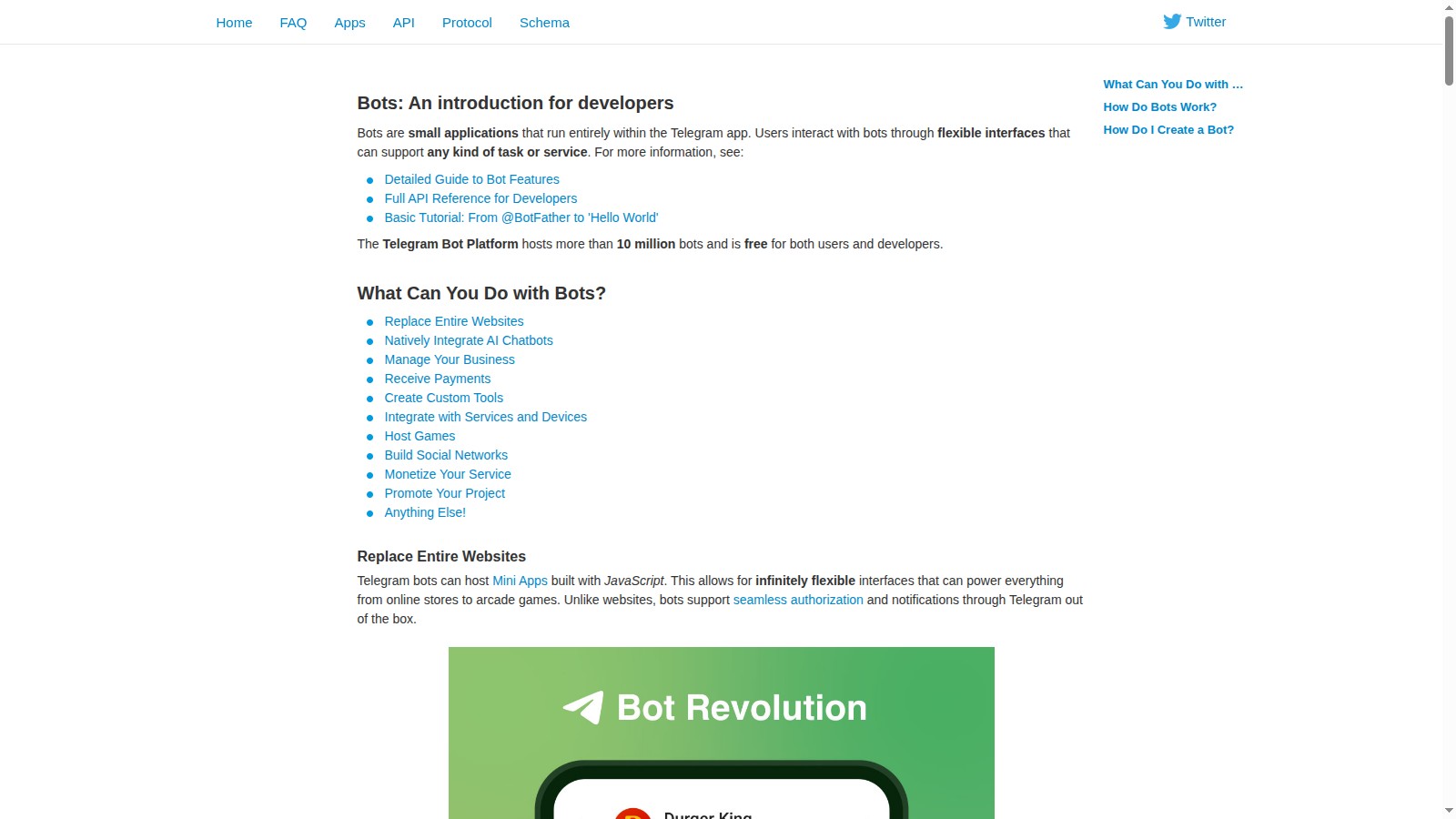 Telegram BotFather
Telegram provides an official bot called BotFather that creates and manages all Telegram bots. Open Telegram and search for @BotFather or click this link: t.me/BotFather
Start a chat with BotFather and send the command:
/newbot
BotFather will ask you for two things:
- Bot name - This is the display name users will see (e.g., "Krill Assistant")
- Bot username - Must end in "bot" and be unique (e.g., "krill_helper_bot")
Once you've provided both, BotFather will create your bot and give you a bot token. It looks something like:
123456789:ABCdefGHIjklMNOpqrsTUVwxyz
Copy this token immediately and store it securely. This is your bot's password and you'll need it to connect OpenClaw.
2. Configure Your Bot Settings
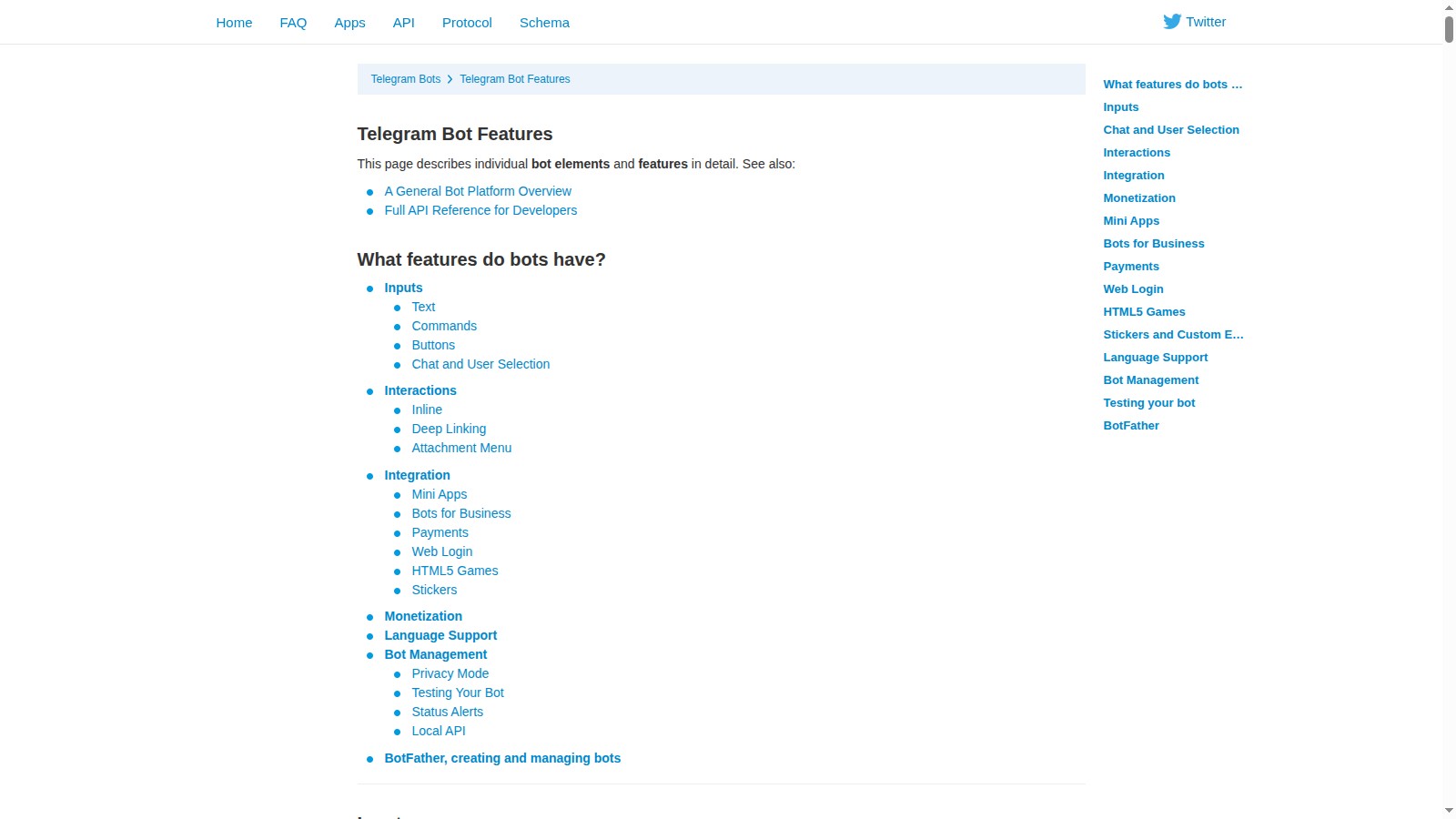 BotFather Settings
Before connecting to OpenClaw, let's configure some useful bot settings. In your chat with BotFather, send:
/mybots
Select your bot from the list, then click Bot Settings. Here are the recommended settings:
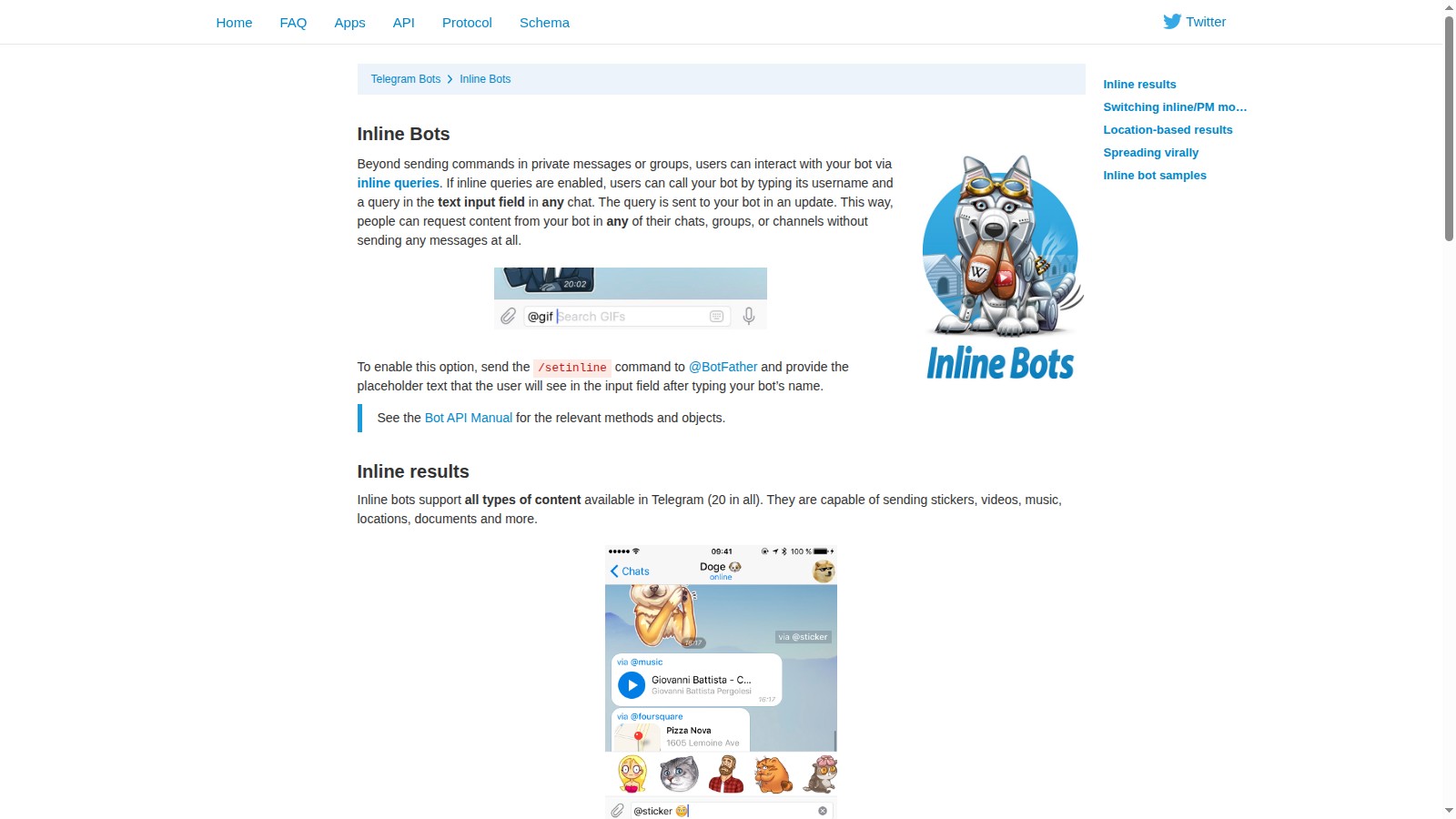
Inline Mode → Enable if you want the bot to respond in other chats when mentioned Group Privacy → Disable if you want the bot to see all messages in groups (useful for group chat assistance) Commands → Add helpful commands like:
/help- Show available commands/status- Check bot status/clear- Clear conversation history
You can always change these later, but it's good to set them up now.
3. Connect OpenClaw to Telegram
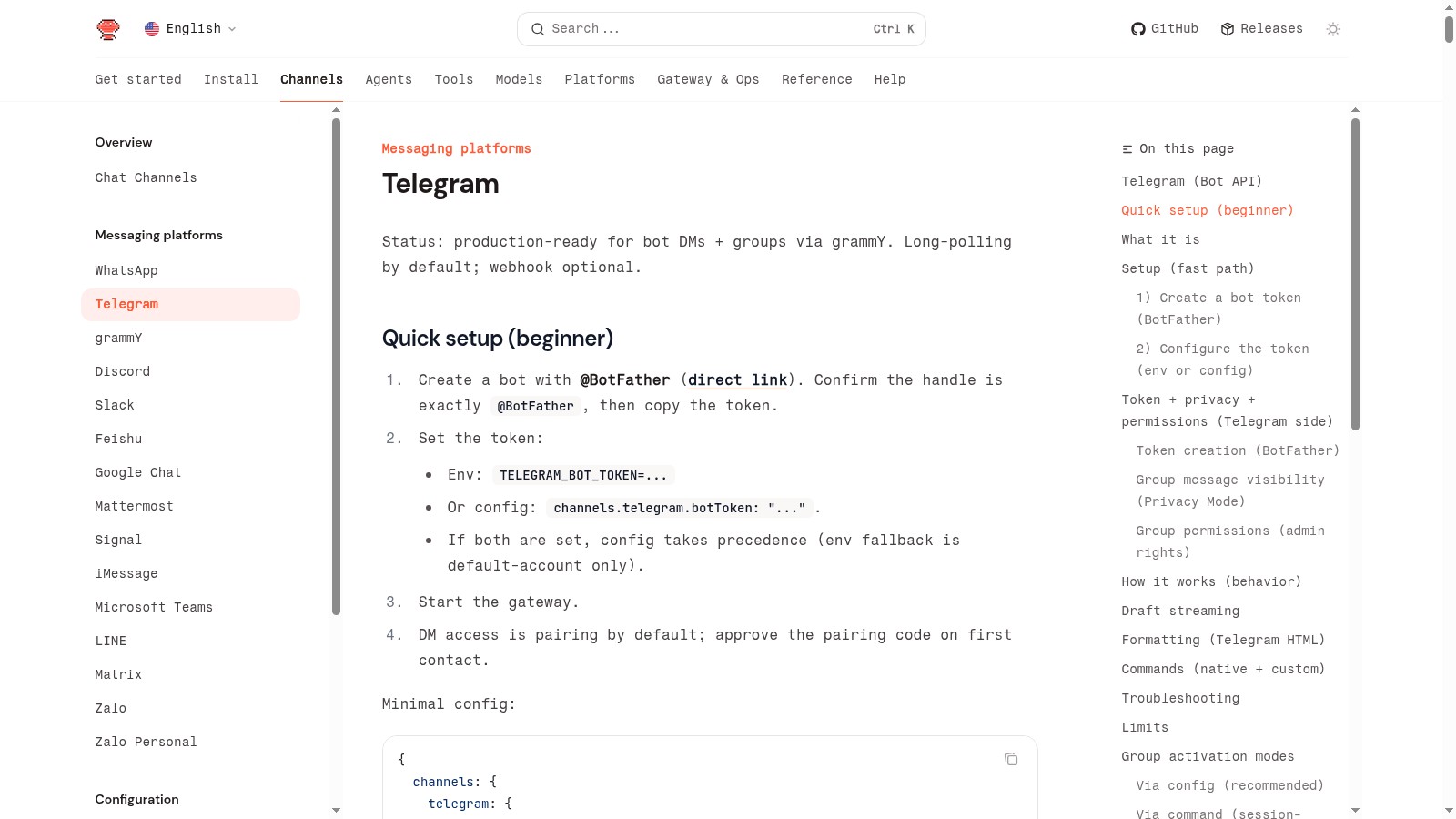 OpenClaw Configuration
Now let's connect your bot to OpenClaw. You have two options:
Option 1: Environment Variable (Recommended for servers)
export TELEGRAM_BOT_TOKEN="123456789:ABCdefGHIjklMNOpqrsTUVwxyz"
Add this to your ~/.bashrc or ~/.zshrc to make it permanent.
Option 2: Config File
Edit your OpenClaw config file (~/.openclaw/openclaw.json) and add:
{
  "channels": {
    "telegram": {
      "enabled": true,
      "botToken": "123456789:ABCdefGHIjklMNOpqrsTUVwxyz"
    }
  }
}
For a more secure setup with access control:
{
  "channels": {
    "telegram": {
      "enabled": true,
      "botToken": "your-bot-token-here",
      "dmPolicy": "pairing",
      "allowFrom": ["your-telegram-user-id"],
      "groupPolicy": "allowlist",
      "groups": {
        "your-group-id": {
          "allow": true
        }
      }
    }
  }
}
To find your Telegram user ID, you can use bots like @userinfobot - just start a chat and it will tell you your ID.
4. Start the Gateway
 OpenClaw Gateway Running
Start (or restart) the OpenClaw gateway to activate the Telegram connection:
openclaw gateway restart
Check that Telegram is connected:
openclaw channels status
You should see output showing Telegram as connected with your bot username.
If you see errors:
- "Invalid token" - Double-check you copied the full token from BotFather
- "Telegram channel disabled" - Make sure
enabled: trueis set in your config - "Connection timeout" - Check your internet connection
5. Have Your First Conversation
 Telegram Bot Conversation
Open Telegram and search for your bot by its username (e.g., @krill_helper_bot). Start a chat and send:
Hello! What can you do?
Your OpenClaw-powered bot should respond with its capabilities. Congratulations - you now have Claude AI running in Telegram!
What you can do with your bot:
- Send messages and have natural conversations with full context
- Share files - send images, PDFs, documents and the bot can read them
- Use commands -
/help,/status, or custom commands you define - Group chats - add the bot to groups for team assistance
- Voice messages - send voice notes (if you configure speech-to-text)
6. Secure Your Bot with Pairing
 Telegram Pairing Approval
By default, OpenClaw uses "pairing mode" for security. When someone new messages your bot, they'll receive a pairing code. You need to approve them before they can use the bot.
When you see a pairing request, run:
openclaw pairing list
This shows pending pairing requests. To approve someone:
openclaw pairing approve telegram <code>
To reject:
openclaw pairing reject telegram <code>
Disable pairing (open bot):
If you want anyone to use your bot, set dmPolicy to "open" and add "*" to allowFrom:
{
  "channels": {
    "telegram": {
      "dmPolicy": "open",
      "allowFrom": ["*"]
    }
  }
}
Note: Only do this if you understand the implications. Anyone with your bot username can use it.
7. Advanced Features
 Telegram Inline Buttons
OpenClaw's Telegram integration includes several advanced features:
Inline Buttons
The bot can send messages with clickable buttons for actions:
- Confirmation buttons (Yes/No)
- Multiple choice selections
- Quick actions
Reply Context
When you reply to a specific message, OpenClaw includes that context in its response, making conversations more natural.
Streaming Responses
Long responses are streamed in real-time and automatically updated, so you see the answer forming rather than waiting for completion.
File Handling
Send images and the bot can:
- Describe what's in the image
- Read text from screenshots
- Analyze diagrams and charts
Send PDFs and the bot can:
- Read and summarize documents
- Answer questions about the content
- Extract specific information
Group Chat Integration
Add your bot to Telegram groups for team assistance. Configure per-group settings:
{
  "channels": {
    "telegram": {
      "groups": {
        "-1001234567890": {
          "allow": true,
          "requireMention": true,
          "systemPrompt": "You're a helpful team assistant."
        }
      }
    }
  }
}
With requireMention: true, the bot only responds when mentioned with @botname.
8. Customize Bot Behavior
 OpenClaw Bot Personality
Want to customize how your bot behaves? Edit your workspace files:
SOUL.md - Define your bot's personality:
You are Krill, a helpful and witty AI assistant.
Be concise but friendly. Use emojis occasionally.
When uncertain, admit it rather than guessing.
AGENTS.md - Set operational rules:
- Respond within 30 seconds when possible
- For long tasks, provide progress updates
- Use inline buttons for yes/no questions
- Keep messages under 2000 characters
Tools access - Control what the bot can do by configuring tool policies in your OpenClaw config.
Conclusion
 Telegram and OpenClaw
You've successfully set up OpenClaw as a Telegram bot! Your AI assistant is now available 24/7 from any device where you use Telegram.
The power of this setup is the persistent conversation context - your bot remembers past conversations and can handle complex, multi-step tasks through simple chat messages.
Next steps to explore:
- Set up scheduled reminders that message you in Telegram
- Connect multiple channels (Discord, Slack, Signal) to the same OpenClaw instance
- Configure exec approvals for safe command execution
- Create custom skills tailored to your workflow
Join the OpenClaw Discord if you have questions or want to share your setup!
Frequently Asked Questions
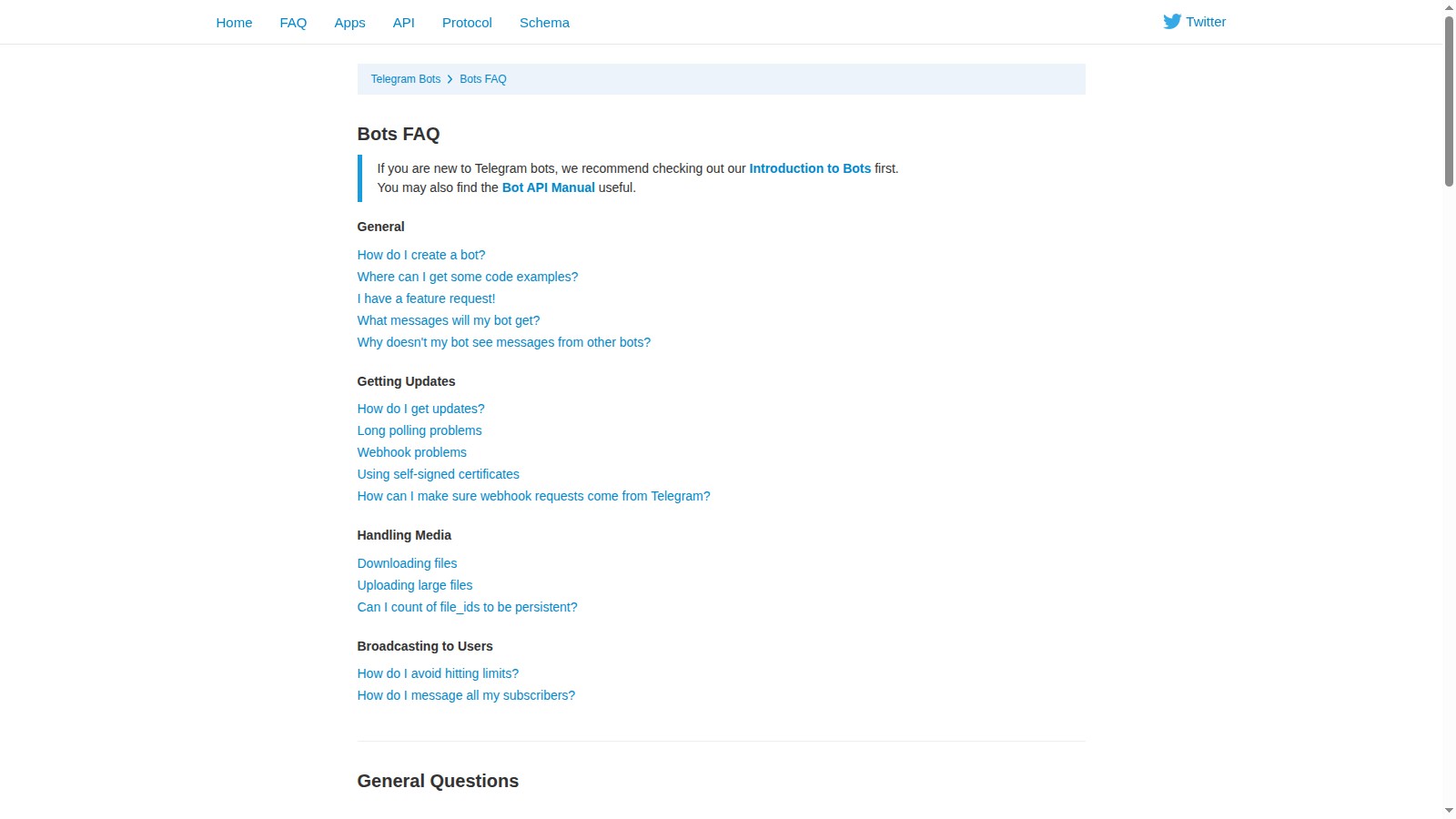 Telegram Bot FAQ
Can I use the same bot token on multiple servers?
No - each bot token should only be used by one OpenClaw instance. If you need multiple bots, create separate bots with BotFather.
How do I find my Telegram user ID?
Message @userinfobot on Telegram and it will reply with your user ID. You can also use @RawDataBot for more detailed info.
Can the bot work in group chats?
Yes! Add the bot to a group and configure it in your OpenClaw config. Use requireMention: true so it only responds when explicitly mentioned.
Is there a message rate limit?
Yes - Telegram limits bots to 30 messages per second across all chats, and 20 messages per minute to the same chat. OpenClaw handles this automatically with retry logic.
Can I change the bot's profile picture?
Yes! Message BotFather, send /mybots, select your bot, then choose Edit Bot → Edit Botpic and upload an image.
Does the bot store conversation history?
OpenClaw stores conversation history locally on your server in the session files. The history is not sent to Telegram's servers beyond the messages themselves.
More Articles
The Ultimate OpenClaw AWS Setup Guide

The definitive guide to setting up OpenClaw on AWS. Includes spot instance configuration, cost optimization, and step-by-step instructions.
Building AI Workflows with Tool Chaining in OpenClaw
Master the art of chaining tools and function calls to build powerful multi-step AI automation workflows—from data extraction to content generation and deployment.
Cost Optimization Guide for Self-Hosted AI Assistants: Run Claude on a Budget
Practical strategies to reduce API costs for self-hosted AI assistants—smart model routing, caching, batching, and OpenClaw-specific optimizations to run Claude affordably.