
Automate Your Life with OpenClaw: Complete Guide to Cron Jobs and Scheduled Tasks
What if your AI assistant could check your email every morning, remind you of meetings, and send you a daily briefing—all without you lifting a finger? With OpenClaw's built-in automation system, that's not just possible—it's surprisingly easy to set up.
OpenClaw includes a powerful scheduling engine that runs directly in the Gateway process. Unlike external cron systems, it's deeply integrated with your AI assistant, meaning your scheduled tasks can leverage Claude's full capabilities: reading files, browsing the web, sending messages, and more.
In this guide, you'll learn how to transform your self-hosted AI assistant into a true automation powerhouse.
Understanding OpenClaw's Two Scheduling Systems
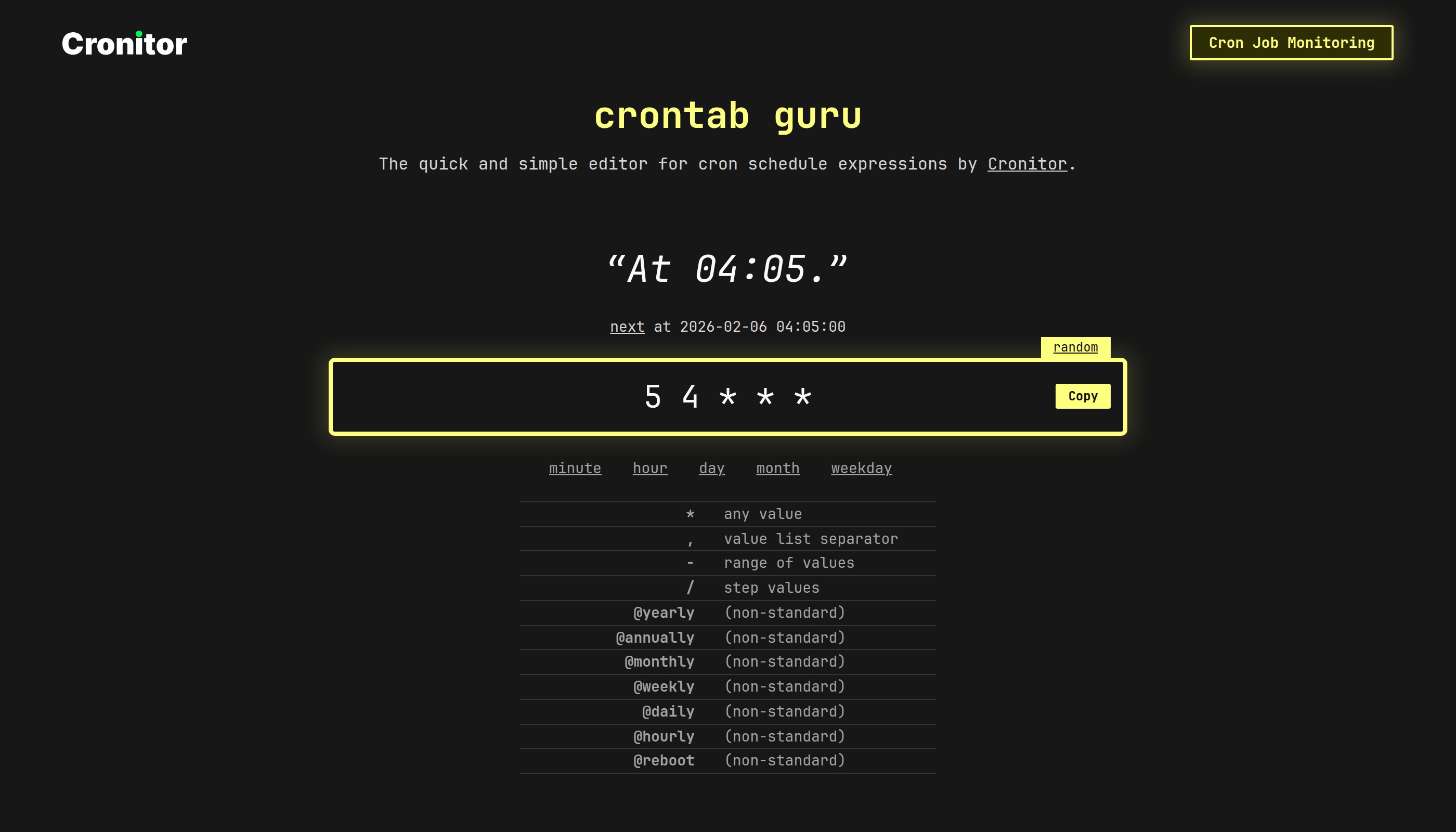 Cron expressions define exactly when your scheduled tasks run
Before diving into commands, you need to understand that OpenClaw offers two scheduling mechanisms:
Heartbeat runs in your main session at regular intervals (default: every 30 minutes). Think of it as your AI assistant periodically "waking up" to check if anything needs attention. Heartbeats are perfect for monitoring tasks that can be batched together.
Cron Jobs run at exact times you specify. They can run in isolated sessions without affecting your main conversation history. Cron is ideal for precise scheduling like "send my morning briefing at 7 AM sharp."
The magic happens when you combine both systems. Use heartbeat for routine awareness checks and cron for time-sensitive deliveries.
| Feature | Heartbeat | Cron Jobs |
|---|---|---|
| Timing | Approximate intervals | Exact schedules |
| Session | Main session | Main or isolated |
| Context | Full conversation history | Can start fresh |
| Best for | Batched monitoring | Precise deliveries |
Step 1: Setting Up Your First Reminder
 OpenClaw delivers reminders directly to your preferred chat app
Let's start with something practical: a simple reminder. Say you need to remember to call a client in 20 minutes.
Open your terminal and run:
openclaw cron add \
  --name "Call client" \
  --at "20m" \
  --session main \
  --system-event "Reminder: Call the client about the proposal." \
  --wake now \
  --delete-after-run
Let's break down what each flag does:
--name: A human-readable identifier for your job--at "20m": When to trigger (supports durations like20m,2h, or ISO timestamps)--session main: Run in your main chat session--system-event: The text your AI assistant will see--wake now: Triggers immediately when the time arrives--delete-after-run: Removes the job after it fires (perfect for one-shots)
Your AI assistant will ping you in 20 minutes with the reminder. No app needed, no notification settings to configure—it just works through whatever channel you're using (Telegram, Discord, WhatsApp, etc.).
Step 2: Creating Recurring Tasks
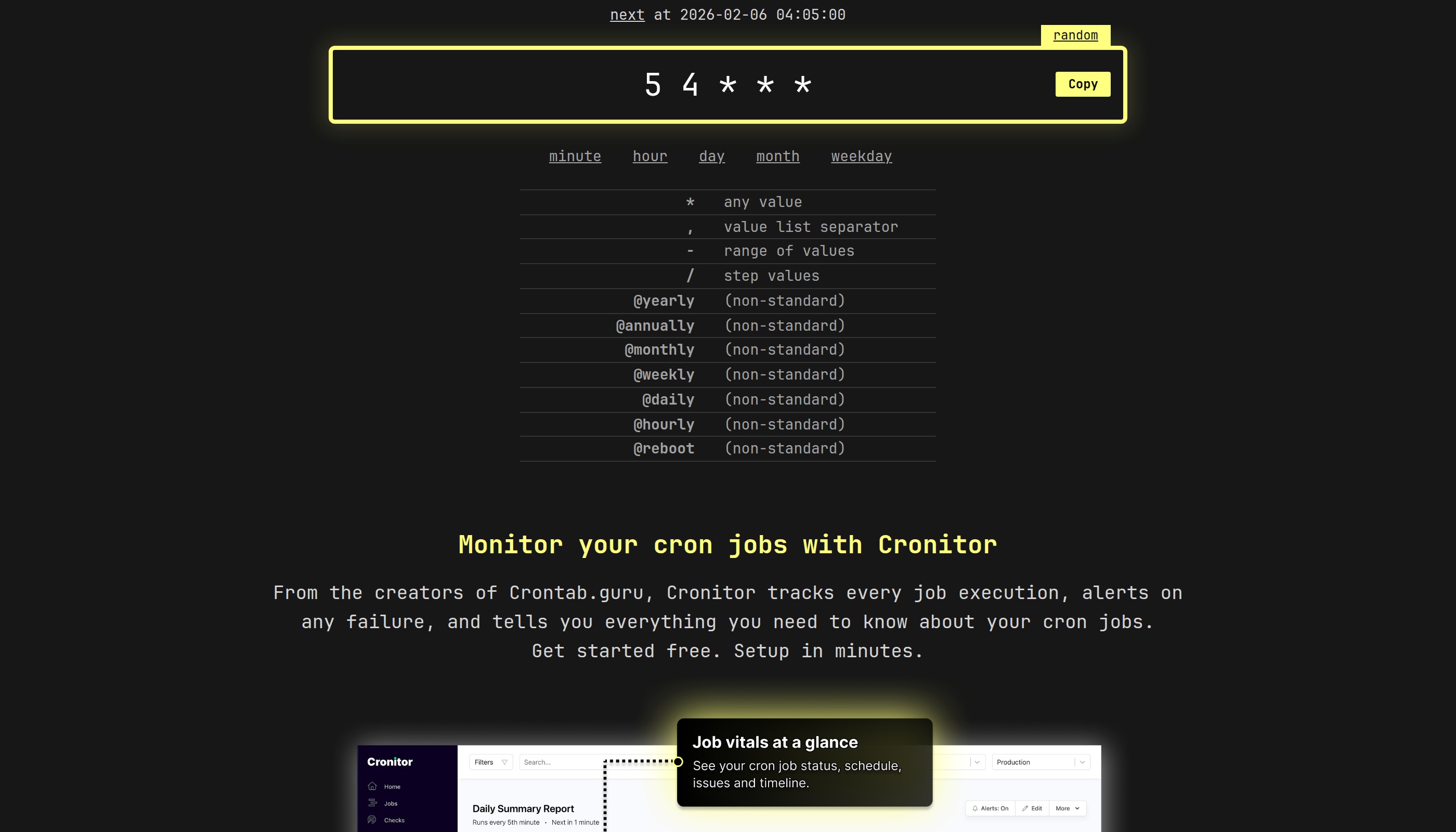 Use crontab.guru to build and test your cron expressions
One-shot reminders are useful, but the real power comes from recurring tasks. OpenClaw supports standard 5-field cron expressions plus timezone awareness.
Here's how to create a task that runs every weekday morning at 9 AM in your local timezone:
openclaw cron add \
  --name "Morning standup prep" \
  --cron "0 9 * * 1-5" \
  --tz "America/New_York" \
  --session isolated \
  --message "Review yesterday's work and prepare standup notes. Check calendar for today's meetings." \
  --deliver
The cron expression 0 9 * * 1-5 means:
0- minute 09- hour 9 (9 AM)*- any day of month*- any month1-5- Monday through Friday
Notice we used --session isolated this time. Isolated jobs run in their own session (cron:job-id) without polluting your main conversation history. This is perfect for recurring tasks that generate output.
The --deliver flag tells OpenClaw to send the results to your last active channel. You can also specify a channel explicitly with --channel telegram --to "your-chat-id".
Step 3: Building a Daily Briefing System
 Your AI assistant delivers briefings directly to your chat app
Here's where things get exciting. Let's create a comprehensive morning briefing that delivers to your phone every day at 7 AM:
openclaw cron add \
  --name "Morning briefing" \
  --cron "0 7 * * *" \
  --tz "Asia/Bangkok" \
  --session isolated \
  --model opus \
  --message "Generate my morning briefing:
1. Weather forecast for today
2. Calendar events for the next 12 hours
3. Unread emails that need attention
4. Any pending reminders or tasks
5. One interesting news item in my industry

Format it concisely with clear sections." \
  --deliver \
  --channel telegram \
  --to "your-telegram-chat-id"
A few things to note:
Model override: We specified --model opus to use Claude Opus for this important daily task. You can also use --thinking high for extra reasoning capability on complex analysis.
Rich prompt: The message can be as detailed as you want. Your AI assistant will execute the full prompt, using its available tools to check weather, read your calendar, scan emails, and more.
Direct delivery: By specifying --channel and --to, the briefing goes straight to your Telegram (or WhatsApp, Discord, Slack, etc.) at exactly 7 AM.
Step 4: Combining Cron with Heartbeat for Maximum Efficiency
 Combine multiple automation systems for maximum efficiency
The smartest automation setups use both systems together:
- Heartbeat handles routine monitoring every 30 minutes
- Cron handles precise, time-sensitive deliveries
Create a HEARTBEAT.md file in your OpenClaw workspace:
- Scan inbox for urgent emails (only surface truly urgent items)
- Check calendar for events in the next 2 hours
- Review any running background tasks
- If idle for 8+ hours, send a brief check-in

Note: Morning briefing is handled by cron job, don't duplicate.
Your AI assistant reads this file on every heartbeat and handles all items in one efficient turn. If nothing needs attention, it simply replies HEARTBEAT_OK and no message is sent.
Meanwhile, your cron jobs handle the scheduled deliveries:
openclaw cron add \
  --name "Weekly review" \
  --cron "0 9 * * 1" \
  --tz "Asia/Bangkok" \
  --session isolated \
  --model opus \
  --thinking high \
  --message "Generate a comprehensive weekly review..." \
  --deliver

openclaw cron add \
  --name "EOD summary" \
  --cron "0 18 * * 1-5" \
  --tz "Asia/Bangkok" \
  --session isolated \
  --message "Summarize what was accomplished today..." \
  --deliver
This setup gives you:
- Continuous awareness via heartbeat (catches urgent items fast)
- Scheduled precision via cron (reports arrive exactly when you want them)
- Cost efficiency (heartbeat batches checks, cron uses isolated sessions)
Step 5: Managing Your Automation Jobs
 Track and manage all your scheduled automation jobs
Once you have multiple jobs running, you'll want to manage them:
List all jobs:
openclaw cron list
View job run history:
openclaw cron runs --id <job-id> --limit 10
Manually trigger a job (for testing):
openclaw cron run <job-id> --force
Edit an existing job:
openclaw cron edit <job-id> \
  --message "Updated prompt text" \
  --model sonnet
Disable without deleting:
openclaw cron edit <job-id> --disable
Delete a job:
openclaw cron remove <job-id>
All jobs are persisted in ~/.openclaw/cron/jobs.json, so they survive Gateway restarts. Run history is stored in ~/.openclaw/cron/runs/ as JSONL files.
Conclusion
 Let AI handle the scheduling so you can focus on what matters
You've just learned how to transform your OpenClaw installation into a true automation engine. With cron jobs handling precise schedules and heartbeat managing continuous awareness, your self-hosted AI assistant can now:
- Send you morning briefings at exactly the right time
- Monitor your inbox and calendar throughout the day
- Remind you of important tasks with perfect timing
- Generate weekly reports and summaries automatically
The best part? All of this runs on your own infrastructure, keeping your data private and your automation under your control.
Start simple with a few reminders, then gradually build up to a comprehensive automation system. Before long, you'll wonder how you ever managed without it.
Ready to level up further? Learn how to connect multiple channels or explore advanced MCP integrations for even more automation possibilities.
FAQ
 Find detailed answers in the official OpenClaw documentation
How many cron jobs can I run?
There's no hard limit, but each isolated job consumes API tokens. For cost efficiency, batch similar checks into heartbeat and reserve cron for time-sensitive deliveries.
Can I use different AI models for different jobs?
Yes! Use --model to specify any model your provider supports (e.g., opus, sonnet, gpt-4). You can also add --thinking high for enhanced reasoning on complex tasks.
What happens if a cron job fails?
Failed runs are logged in the job's history. Use openclaw cron runs --id <job-id> to review failures. The job will attempt to run again at its next scheduled time.
Can cron jobs access my files and tools?
Absolutely. Cron jobs run with full agent capabilities, so they can read files, browse the web, run commands, and use any tools available to your AI assistant.
How do I stop all automation temporarily?
Set cron.enabled: false in your OpenClaw config or set the environment variable OPENCLAW_SKIP_CRON=1 when starting the Gateway.
More Articles
The Ultimate OpenClaw AWS Setup Guide

The definitive guide to setting up OpenClaw on AWS. Includes spot instance configuration, cost optimization, and step-by-step instructions.
Building AI Workflows with Tool Chaining in OpenClaw
Master the art of chaining tools and function calls to build powerful multi-step AI automation workflows—from data extraction to content generation and deployment.
Cost Optimization Guide for Self-Hosted AI Assistants: Run Claude on a Budget
Practical strategies to reduce API costs for self-hosted AI assistants—smart model routing, caching, batching, and OpenClaw-specific optimizations to run Claude affordably.