
Building a Discord Bot with OpenClaw and Claude

Discord servers need intelligent moderation, helpful responses, and automated management. With OpenClaw and Claude, you can build a sophisticated bot that understands context, maintains conversations, and performs complex tasks—all without writing traditional bot code.
This guide walks through creating a Discord bot powered by OpenClaw, from initial setup to advanced features like role management, scheduled messages, and custom commands. You'll have a working AI bot on your server within 30 minutes.
Why OpenClaw for Discord Bots?
OpenClaw enables conversational AI bots with full Claude capabilities
Traditional Discord bots require extensive programming for each command and interaction pattern. OpenClaw bots use natural language understanding, allowing users to ask questions naturally instead of memorizing command syntax.
Your bot gains access to Claude's reasoning abilities, web search, file operations, and custom skills. It can summarize long conversations, answer complex questions, moderate content intelligently, and even manage server resources based on conversation context.
The memory system ensures continuity across conversations. Your bot remembers user preferences, previous interactions, and server-specific context. This creates a more natural, helpful experience compared to stateless command bots.
Step 1: Create Discord Bot Account
 Set up your bot account through Discord's developer portal
Visit the Discord Developer Portal and create a new application. Give it a descriptive name that reflects its purpose—this becomes your bot's identity on servers.
Navigate to the "Bot" section and click "Add Bot." This generates a unique bot token that OpenClaw uses for authentication. Click "Reset Token" to reveal it, then copy and store it securely. This token grants full control of your bot, so never share it publicly.
Under "Privileged Gateway Intents," enable "Server Members Intent" and "Message Content Intent." These permissions allow your bot to read messages and access member information, which are essential for conversational AI functionality.
Step 2: Configure OpenClaw Discord Skill
 Install and configure the Discord skill in OpenClaw
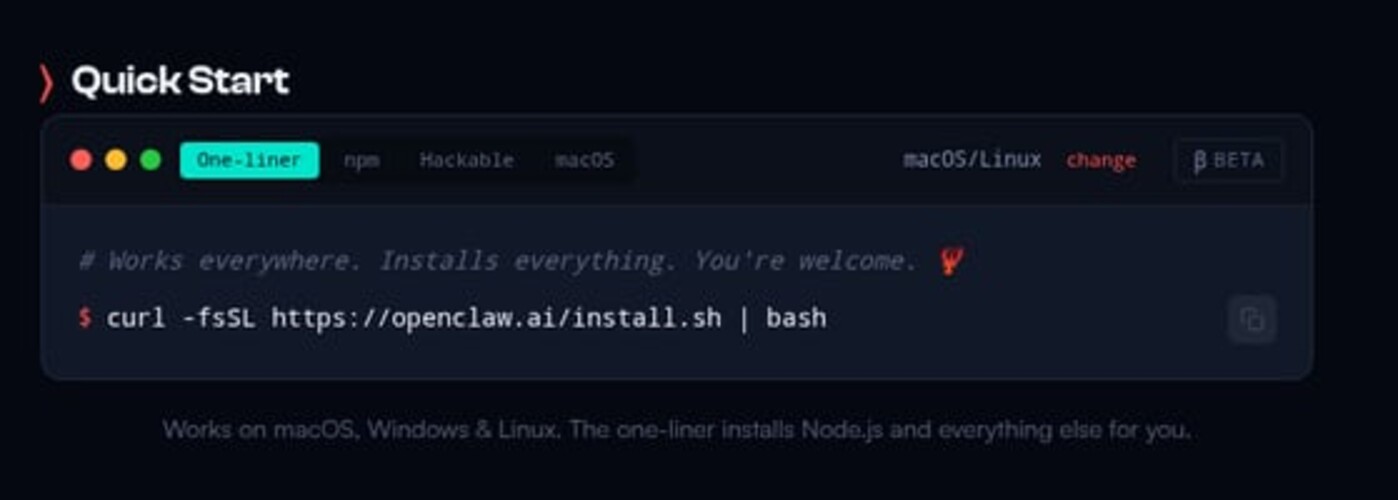
Install the Discord skill if not already present using openclaw skill install discord. This adds Discord messaging capabilities to your AI assistant's available tools.
Create a configuration file at ~/.openclaw/skills/discord/config.yml with your bot token and preferred settings:
token: "YOUR_BOT_TOKEN_HERE"
defaultChannel: "general"
mentionResponse: true
heartbeatChannel: null
Set mentionResponse: true to make your bot respond only when mentioned (recommended for busy servers). For always-on responses, set it to false, but ensure your bot has a designated channel to avoid spam.
Test the configuration with openclaw skill test discord to verify connectivity. Successful connection shows your bot's username and the servers it has access to.
Step 3: Invite Bot to Your Server
 Configure appropriate permissions when adding your bot
Return to the Discord Developer Portal and go to the "OAuth2" section. Under "OAuth2 URL Generator," select the "bot" scope, then choose required permissions.
For basic functionality, enable "Send Messages," "Read Message History," and "Add Reactions." For advanced features like role management, add "Manage Roles" and "Manage Channels." Use minimal permissions necessary for security.
Copy the generated OAuth2 URL and open it in your browser. Select your target server and authorize the bot. It appears in your member list immediately with an "BOT" tag.
Step 4: Configure Bot Personality
 Define your bot's personality and behavior through system prompts
Create a SOUL.md file in your OpenClaw workspace to define your bot's personality, knowledge domain, and response style. This guides how your AI assistant behaves in Discord conversations.
Example personality configuration:
# Discord Bot Personality

You are HelpBot, a friendly AI assistant for the TechCommunity Discord server.

## Behavior
- Respond helpfully to technical questions about programming, AI, and web development
- Use casual, friendly tone with occasional emoji
- Keep responses under 500 words for readability
- Link to official documentation when available
- Admit when you don't know something

## Don't
- Respond to off-topic conversations
- Engage in arguments or controversial topics
- Share private user information
- Execute moderation actions without admin approval
The AI reads this file during initialization and maintains the personality throughout conversations. Update it anytime to refine behavior based on server needs.
For more on personality configuration, see our AI assistant setup guide.
Step 5: Test Basic Interactions
Verify your bot responds correctly to mentions and commands
Mention your bot in any channel where it has permissions: @YourBot what's the weather today? The bot should respond within seconds using its web search capabilities if configured.
Test different question types: factual queries, opinion requests, and task commands. This helps you understand response patterns and identify any permission or configuration issues.
Common issues at this stage include missing Message Content Intent (bot sees messages but can't read content) or incorrect token (bot doesn't connect). Check openclaw gateway logs for detailed error messages.
Step 6: Add Advanced Features
 Extend your bot with scheduling, roles, and custom commands
Scheduled Messages: Use cron jobs to send regular updates, reminders, or announcements:
openclaw cron add "0 9 * * 1" "Send motivational message to #general channel on Discord about weekly goals"
Role Management: Allow your bot to assign roles based on conversation context. Users can request roles naturally: "Can you give me the Developer role?" The bot verifies eligibility and applies it.
Server Analytics: Configure your bot to track engagement, popular topics, or sentiment. Generate weekly summaries of server activity for administrators.
Custom Reactions: Program specific emoji reactions to keywords or patterns. This provides quick feedback without cluttering chat with messages.
Explore more automation ideas in our Discord bot setup guide and webhook automation tutorial.
Managing Multiple Servers
 Scale your bot across multiple Discord communities
One OpenClaw instance can manage bots across multiple servers. Each server can have different personalities by using channel-specific configuration rules in your SOUL.md file.
Maintain separate memory files for each server to prevent context leakage. Use the format memory/discord-{server-id}-YYYY-MM-DD.md to organize conversation history by server and date.
For high-traffic servers, consider dedicated OpenClaw instances to prevent rate limiting and ensure responsive performance. Load balance by directing different server categories to different instances.
Monitor API usage across servers with openclaw usage stats to identify optimization opportunities. Discord bots can generate significant API calls in active communities.
Best Practices for Discord Bots
 Follow these guidelines for reliable, helpful Discord bots
Set clear boundaries on what your bot will and won't do. Document this in a pinned message or server rules so users know how to interact effectively.
Implement rate limiting to prevent abuse. Ignore users who spam mentions or requests. Set cooldowns per user (30-60 seconds) for non-admin commands.
Use thread responses for detailed answers to keep main channels clean. This improves readability and prevents your bot from dominating conversations.
Monitor and moderate your bot's responses regularly. AI can occasionally generate inappropriate or incorrect content. Review logs weekly and update personality rules as needed.
Respect user privacy by not logging personal information unnecessarily. Store only what's needed for functionality and follow Discord's Terms of Service and Developer Policy.
For Claude-specific optimization, read our Claude model selection guide to choose the right model for your bot's workload.
Troubleshooting Common Issues
 Identify and fix Discord bot problems quickly
Bot online but not responding: Verify Message Content Intent is enabled and bot has "Read Messages" permission in the target channel. Check mentionResponse setting matches your usage pattern.
Delayed responses: High message volume or complex queries cause latency. Consider using Haiku model for faster responses to simple questions, reserving Sonnet for complex reasoning.
Permissions errors: Bot attempts actions without proper permissions. Audit your role hierarchy—bot's role must be higher than roles it manages. Grant only necessary permissions.
Context overflow: Long conversations exceed token limits. Implement automatic conversation summarization or memory compaction using OpenClaw's memory management.
Check our CLI commands reference for debugging commands and log analysis tools.
Conclusion
 Your OpenClaw Discord bot is ready to serve your community
You've built an intelligent Discord bot that brings Claude's conversational AI to your server. Unlike traditional bots, yours understands natural language, maintains context, and handles complex requests without rigid command structures.
Start with basic Q&A functionality and gradually expand to moderation, analytics, and custom workflows as you identify server needs. The combination of OpenClaw's infrastructure and Claude's intelligence creates endless automation possibilities.
Ready for more? Learn to build Telegram bots, create multi-agent systems, or explore advanced automation workflows for your AI assistant.
More Articles
The Ultimate OpenClaw AWS Setup Guide

The definitive guide to setting up OpenClaw on AWS. Includes spot instance configuration, cost optimization, and step-by-step instructions.
Building AI Workflows with Tool Chaining in OpenClaw
Master the art of chaining tools and function calls to build powerful multi-step AI automation workflows—from data extraction to content generation and deployment.
Cost Optimization Guide for Self-Hosted AI Assistants: Run Claude on a Budget
Practical strategies to reduce API costs for self-hosted AI assistants—smart model routing, caching, batching, and OpenClaw-specific optimizations to run Claude affordably.