
How to Set Up OpenClaw on Your Computer for Free: 5-Minute Local Install Guide
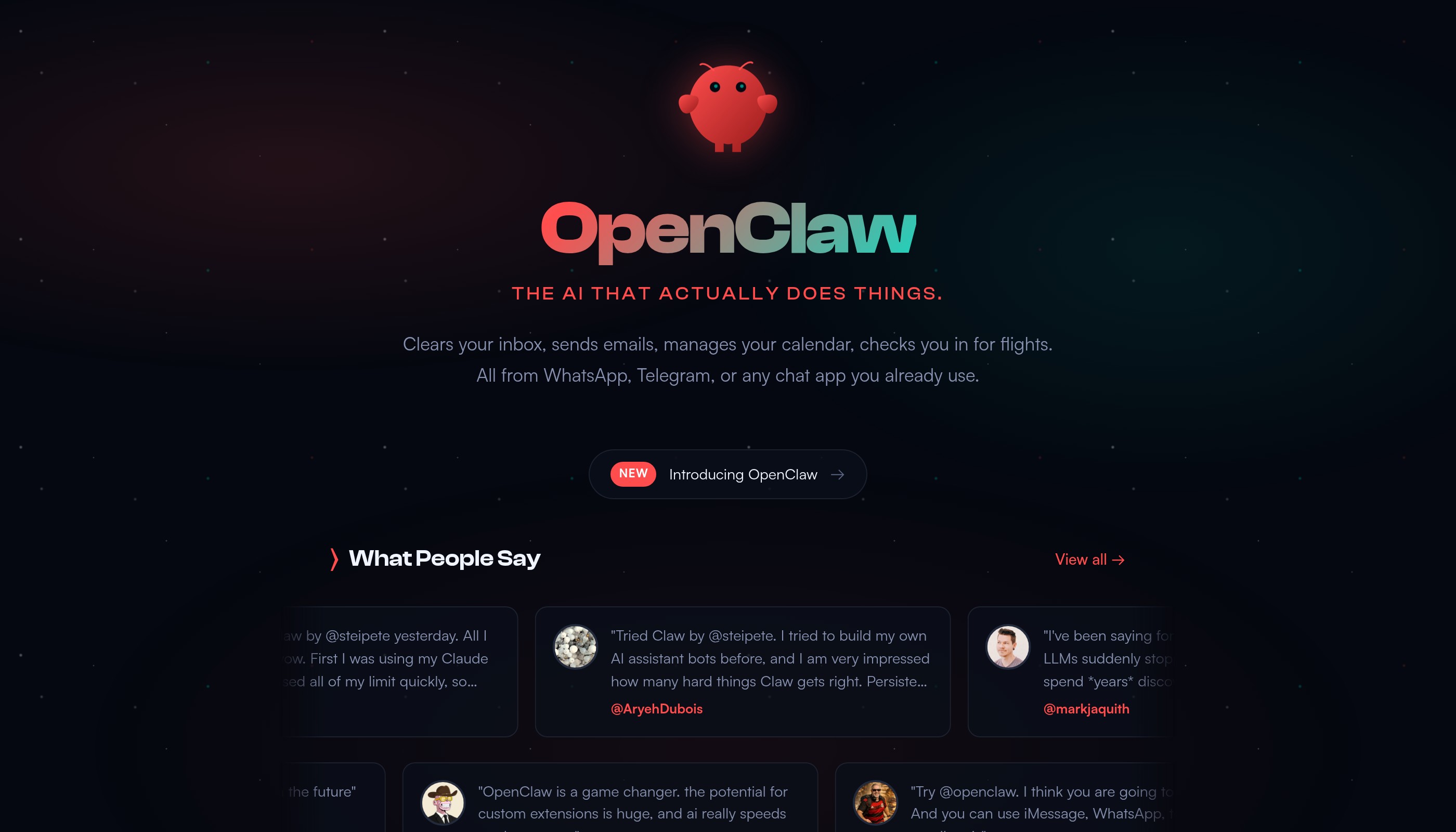
Want a powerful AI assistant that runs on your own computer, completely free? OpenClaw lets you set up a personal AI that connects to Telegram, WhatsApp, Discord, and more—all in about 5 minutes.
Unlike cloud-based AI tools, OpenClaw runs locally on your machine. This means your data stays private, you're not paying monthly subscriptions, and you have full control over how your AI assistant behaves.
In this guide, you'll go from zero to chatting with your own AI assistant. No coding experience required—just follow along step by step.
What You'll Need
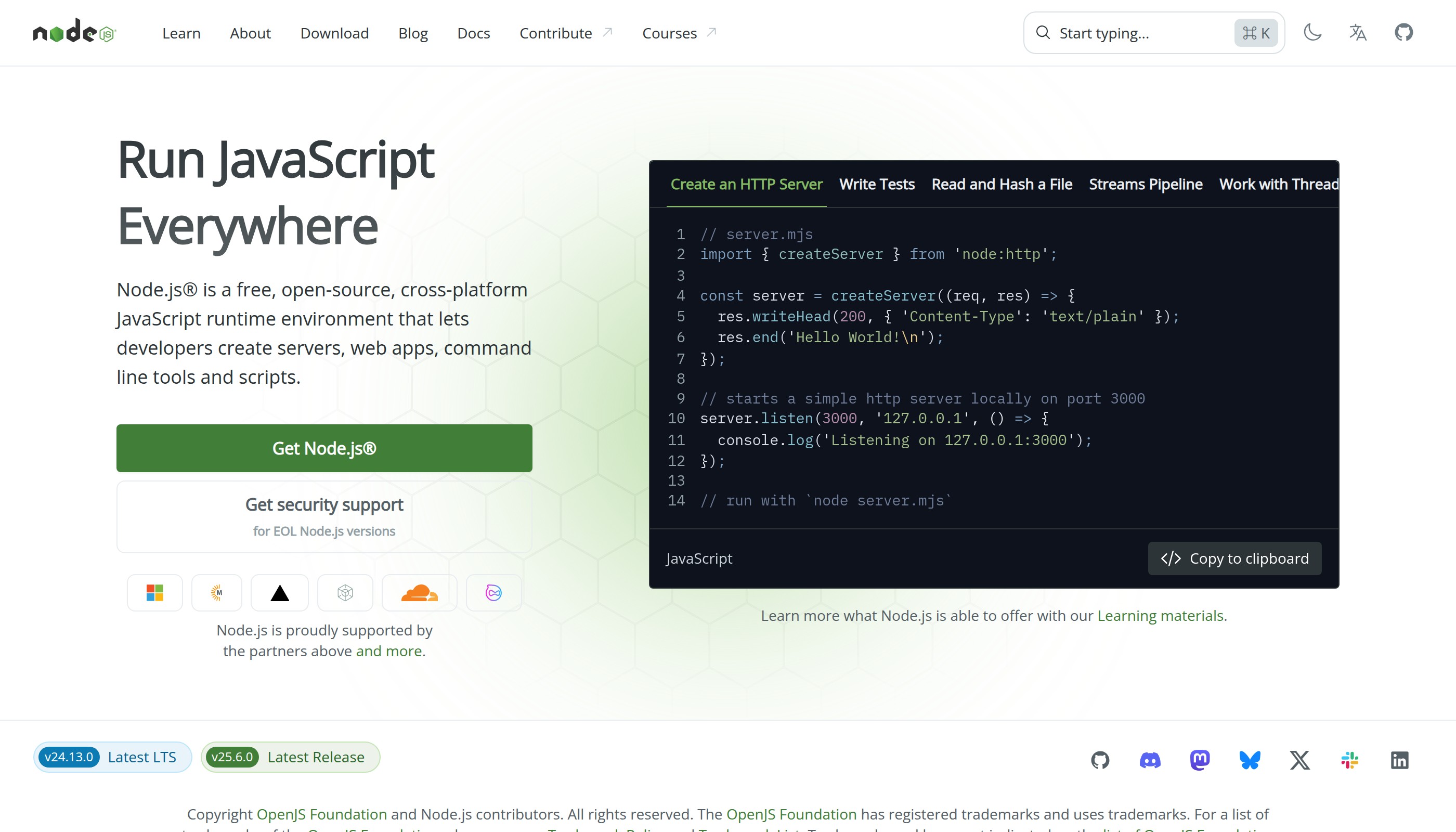 OpenClaw automatically installs Node.js if you don't have it
Before we start, make sure you have:
- A computer running macOS, Windows, or Linux
- An internet connection for downloading and API calls
- 5 minutes of free time
- An Anthropic API key (we'll get this in Step 2)
That's it. OpenClaw's installer handles everything else automatically, including Node.js if you don't have it.
Step 1: Open Your Terminal
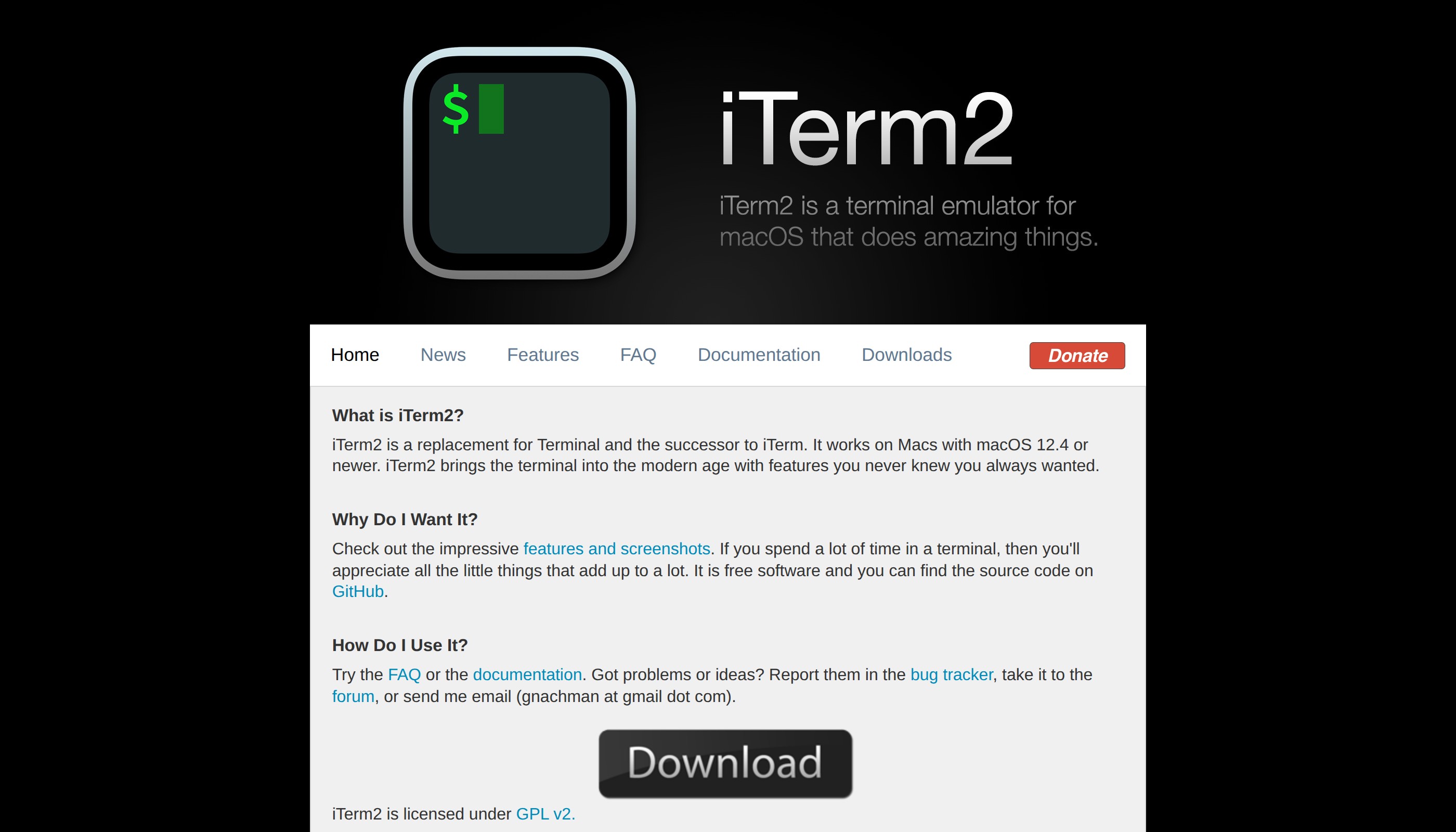 The terminal is where you'll run the installation command
First, open your terminal application:
- Mac: Press
Cmd + Space, type "Terminal", and press Enter - Windows: Press
Win + X, then select "PowerShell" or "Terminal" - Linux: Press
Ctrl + Alt + Tor find Terminal in your applications
Don't worry if you've never used the terminal before. You'll only need to paste one command.
Step 2: Run the Install Command
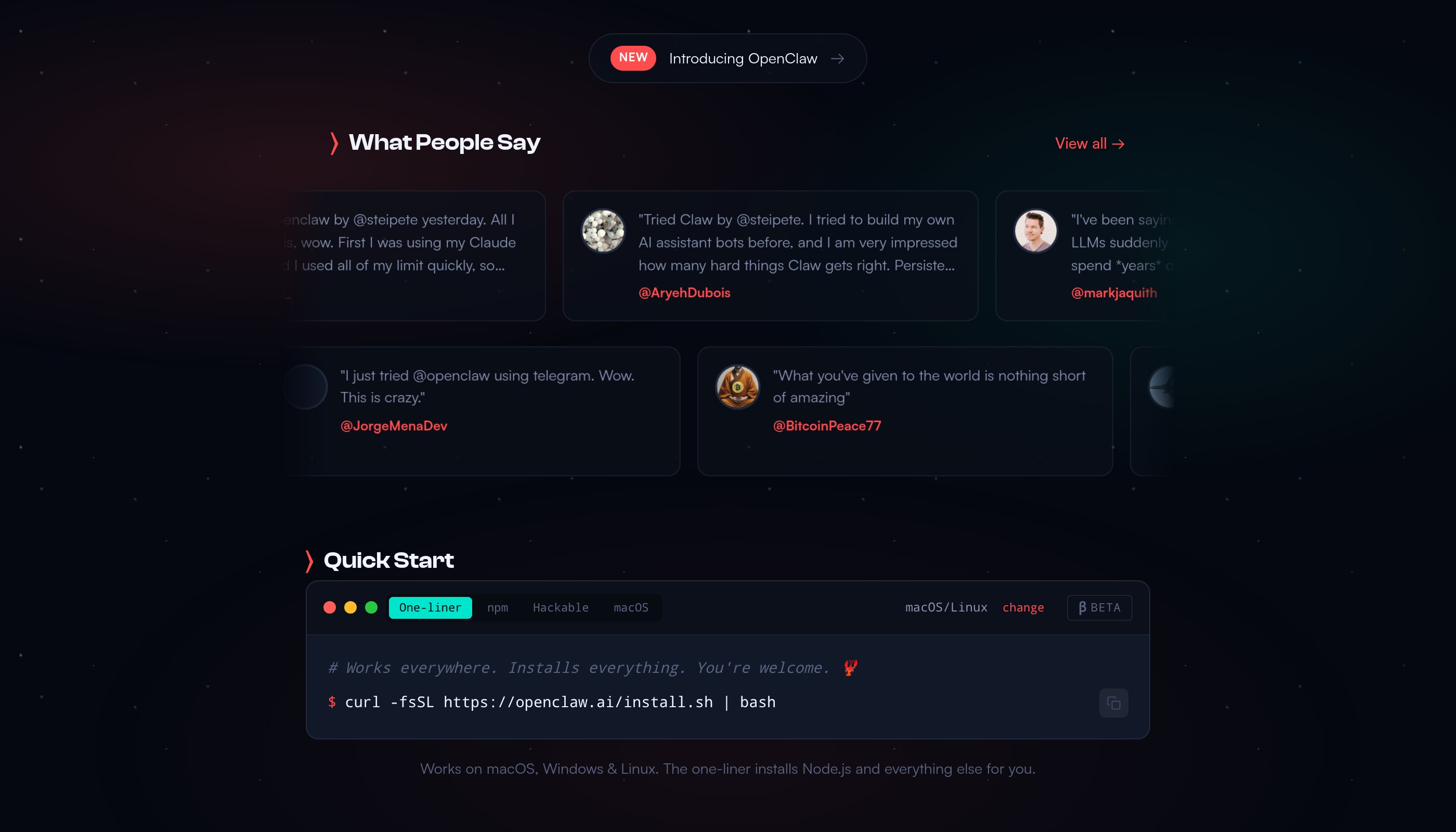 OpenClaw's installer works on macOS, Windows, and Linux
Copy and paste this command into your terminal, then press Enter:
curl -fsSL https://openclaw.ai/install.sh | bash
The installer will:
- Check if Node.js is installed (and install it if needed)
- Download OpenClaw
- Start the setup wizard
This takes about 1-2 minutes depending on your internet speed.
Step 3: Get Your Anthropic API Key
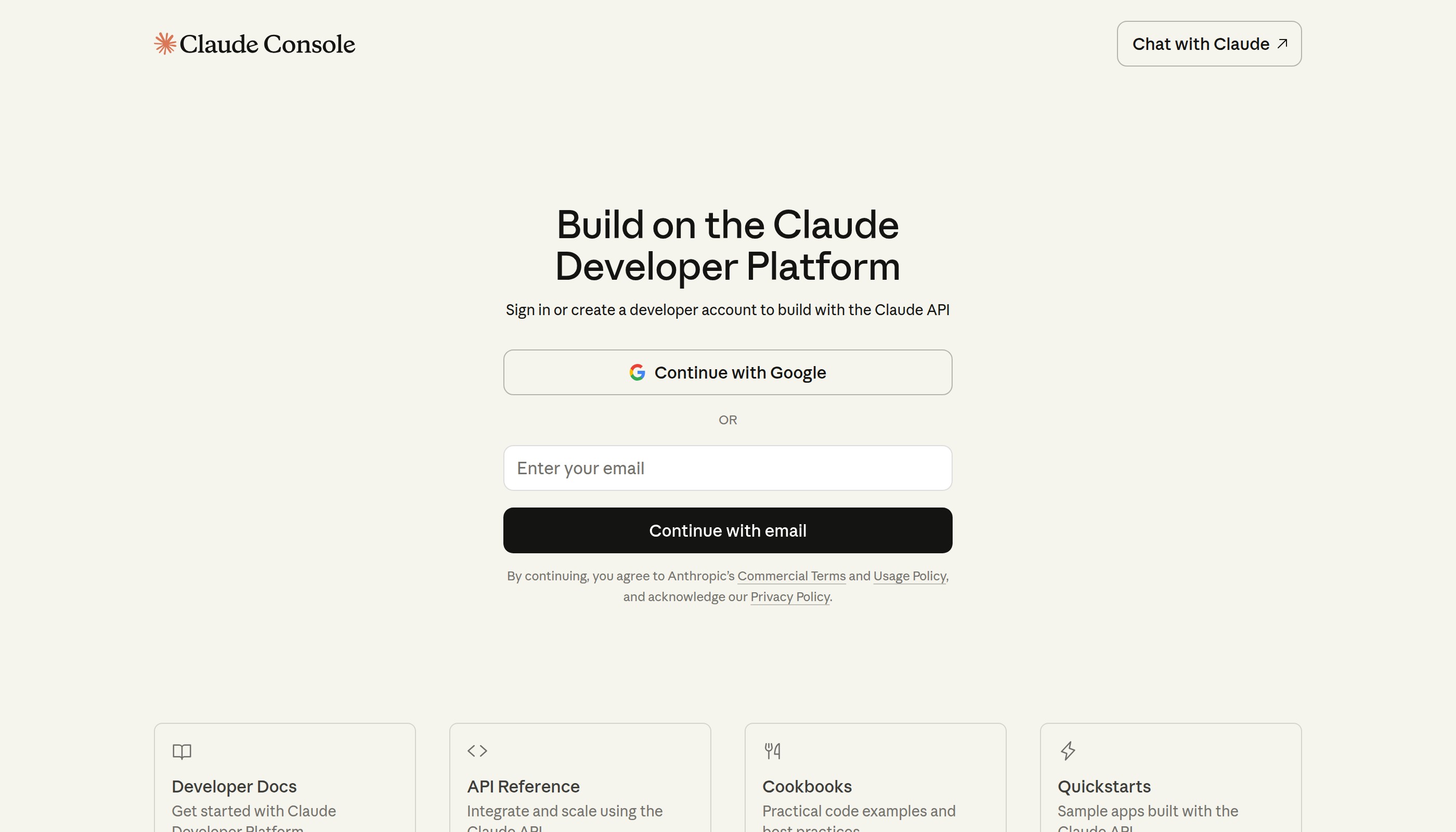 Create a free account at console.anthropic.com to get your API key
When the setup wizard asks for your AI provider, choose Anthropic. Here's how to get your API key:
- Go to console.anthropic.com
- Create a free account (or sign in)
- Navigate to "API Keys" in the sidebar
- Click "Create Key" and copy the key
Paste this key into the OpenClaw setup wizard when prompted.
Cost note: Anthropic charges per use, not monthly. Light usage typically costs $1-5/month. You can set spending limits in your Anthropic dashboard.
Step 4: Connect Telegram
 Telegram is the easiest messaging channel to set up with OpenClaw
OpenClaw needs a messaging channel to communicate with you. Telegram is the quickest to set up:
- Open Telegram and search for @BotFather
- Send
/newbotto create a new bot - Follow BotFather's prompts to name your bot
- Copy the API token BotFather gives you
- Paste it into the OpenClaw setup wizard
That's it! Your AI assistant now has a Telegram bot it can use to message you.
Alternative channels: OpenClaw also supports WhatsApp, Discord, Slack, Signal, and many more. You can add additional channels later.
Step 5: Start the Gateway
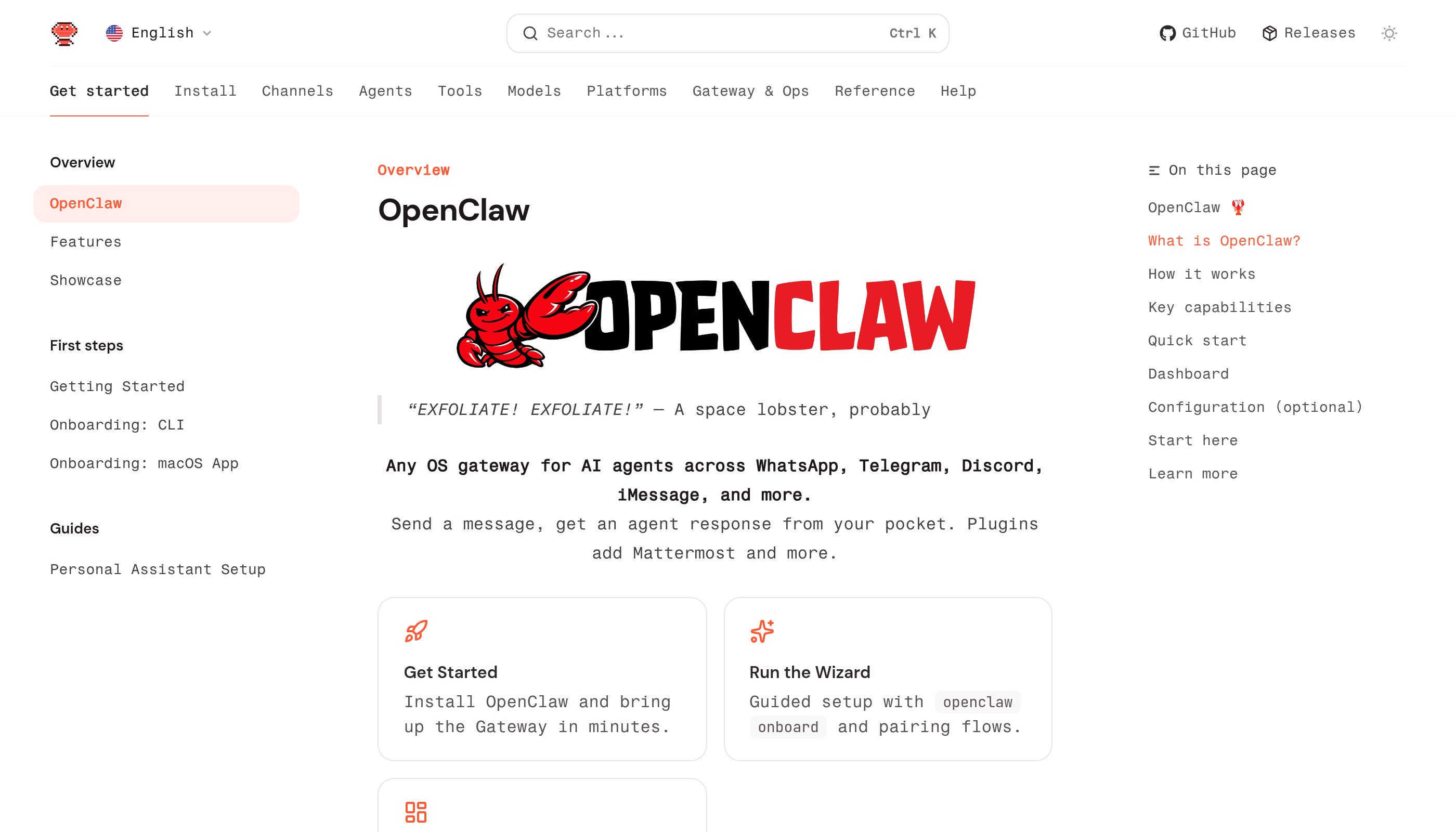 The Gateway is OpenClaw's always-running background service
The final step is starting the OpenClaw Gateway—the service that keeps your AI assistant running:
openclaw gateway start
You should see output confirming the gateway is running. Now open Telegram and send a message to your bot. Your AI assistant will respond!
Pro tip: To keep OpenClaw running even when you close the terminal, the gateway runs as a background service. Use openclaw gateway status to check if it's running.
Conclusion
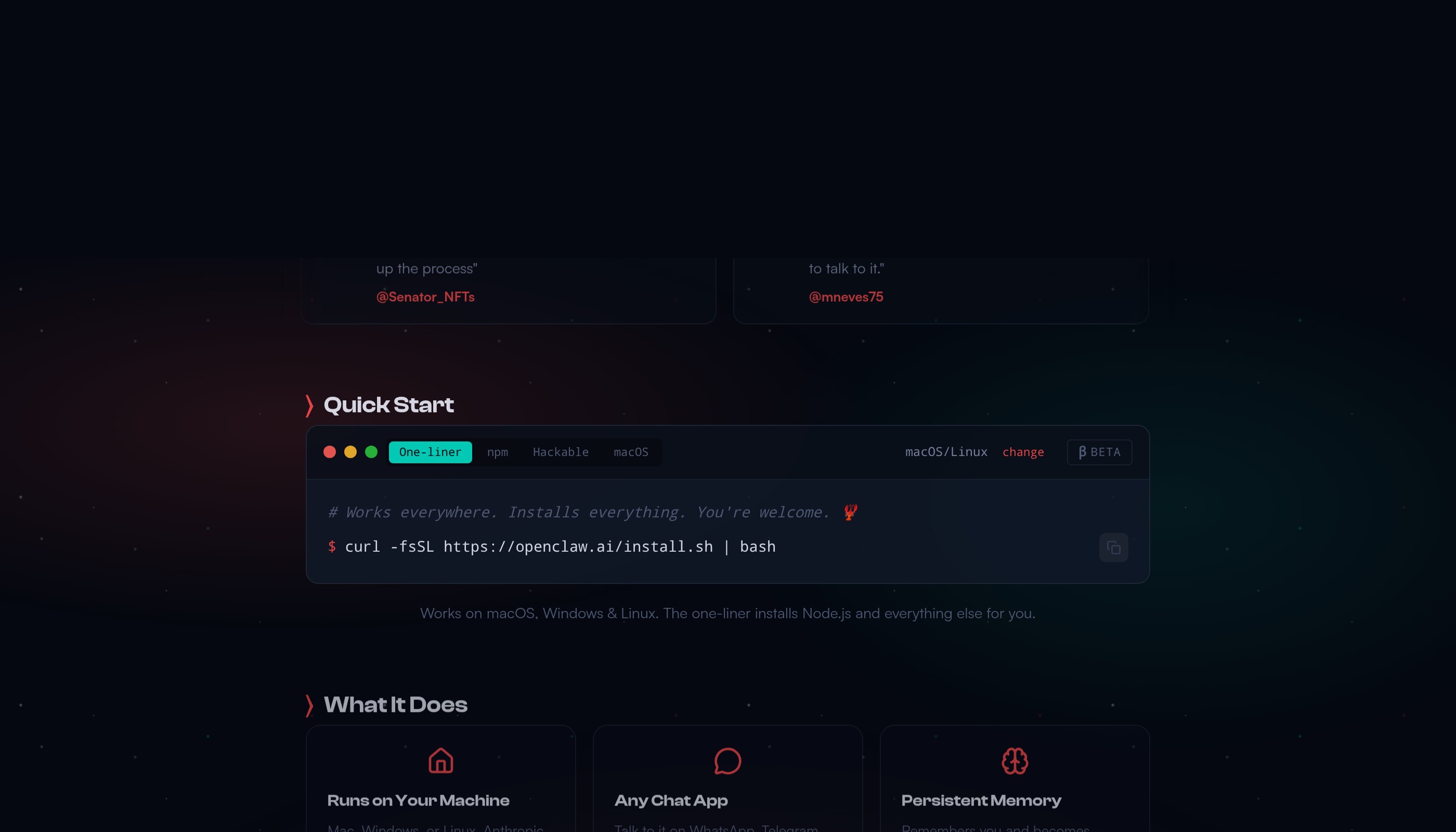 Your new AI assistant can browse the web, access files, and learn new skills
Congratulations! You now have your own AI assistant running locally on your computer. Here's what you can do next:
- Chat naturally via Telegram—ask questions, request tasks, get help
- Add more channels like WhatsApp or Discord
- Install skills to give your AI new capabilities
- Set up automations with cron jobs and scheduling
The best part? Your data stays on your machine, you control the AI's behavior, and there are no monthly fees—just pay-per-use API costs.
Want 24/7 availability? Consider setting up OpenClaw on a VPS so your AI assistant runs even when your computer is off.
FAQ
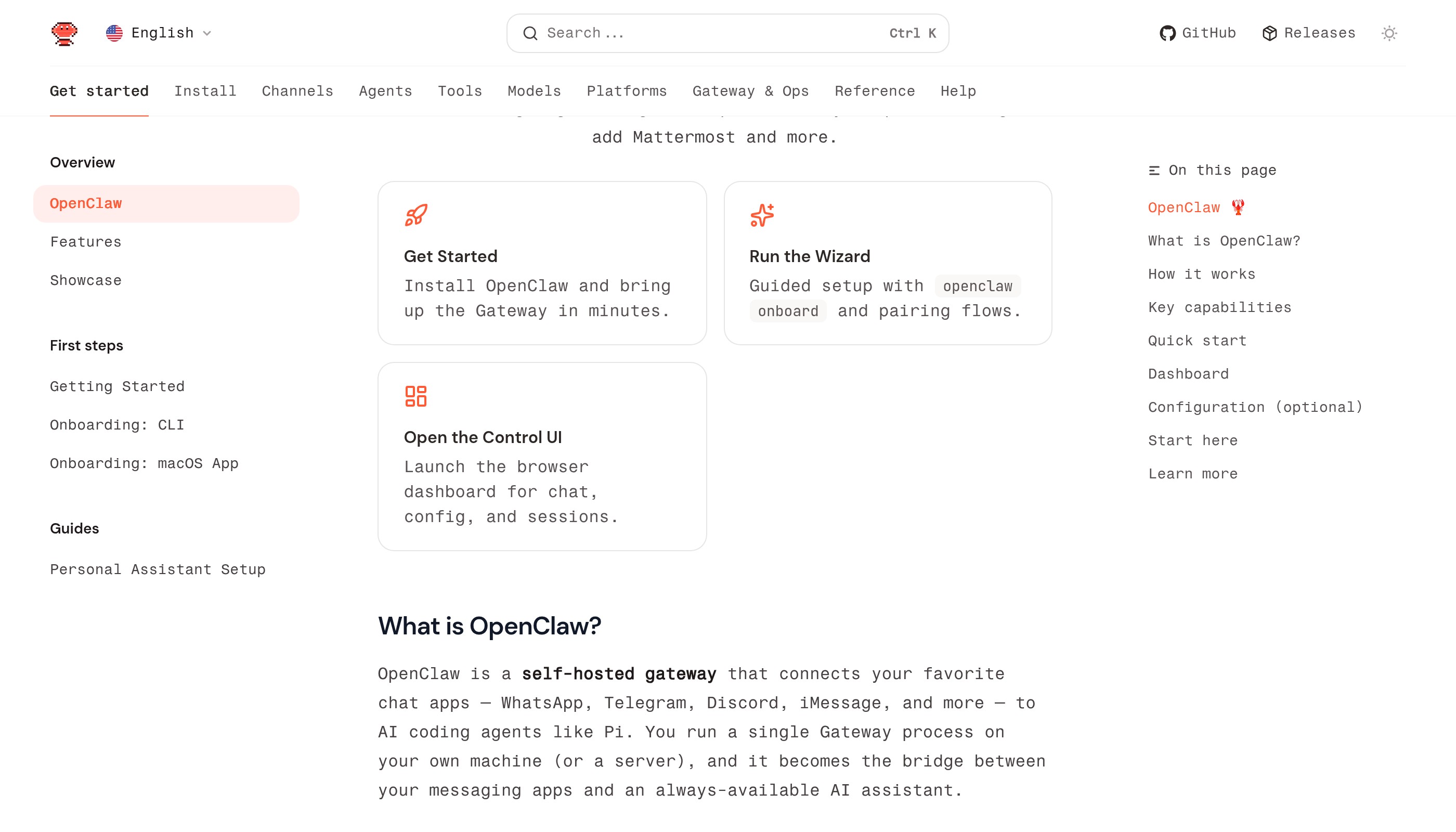 Find detailed documentation at docs.openclaw.ai
Is OpenClaw really free?
Yes, OpenClaw itself is completely free and open source. You only pay for API usage to your AI provider (like Anthropic), which typically costs $1-5/month for light use.
Can I use OpenClaw without Telegram?
Absolutely. OpenClaw supports WhatsApp, Discord, Slack, Signal, iMessage, and more. Telegram is just the easiest to set up initially.
Will OpenClaw slow down my computer?
No. OpenClaw is lightweight and runs in the background. It only uses significant resources when actively processing requests.
What if I close my terminal?
The gateway runs as a background service, so it keeps running. Use openclaw gateway status to check and openclaw gateway stop to stop it.
Can I run OpenClaw on a Raspberry Pi?
Yes! OpenClaw runs on any device with Node.js support, including Raspberry Pi. Check out our hosting options comparison for details.
More Articles
The Ultimate OpenClaw AWS Setup Guide

The definitive guide to setting up OpenClaw on AWS. Includes spot instance configuration, cost optimization, and step-by-step instructions.
Building AI Workflows with Tool Chaining in OpenClaw
Master the art of chaining tools and function calls to build powerful multi-step AI automation workflows—from data extraction to content generation and deployment.
Cost Optimization Guide for Self-Hosted AI Assistants: Run Claude on a Budget
Practical strategies to reduce API costs for self-hosted AI assistants—smart model routing, caching, batching, and OpenClaw-specific optimizations to run Claude affordably.