
How to Connect OpenClaw to WhatsApp (Complete 2026 Guide)
Want Claude AI responding to your WhatsApp messages? OpenClaw's WhatsApp integration turns your personal messaging app into an AI-powered assistant that remembers context, handles files, and automates tasks.
Unlike other messaging platforms where you create a bot, WhatsApp integration works through your actual WhatsApp account. OpenClaw connects to WhatsApp Web and acts as you, responding to messages in your personal or business chats.
This is powerful for automation - schedule reminders that arrive as WhatsApp messages, get AI assistance in group chats, or have Claude help with daily tasks right where you already communicate.
Understand WhatsApp Integration
 WhatsApp Web Architecture
Before diving in, it's important to understand how OpenClaw connects to WhatsApp:
WhatsApp doesn't have an official bot API for personal accounts (only for WhatsApp Business API, which requires business verification). Instead, OpenClaw uses the WhatsApp Web protocol - the same one your browser uses when you open web.whatsapp.com.
This means:
- ✅ Works with your existing personal WhatsApp account
- ✅ No business verification required
- ✅ Full access to all your chats and contacts
- ⚠️ Requires keeping OpenClaw running 24/7
- ⚠️ Your phone must have internet (WhatsApp Web mirrors your phone)
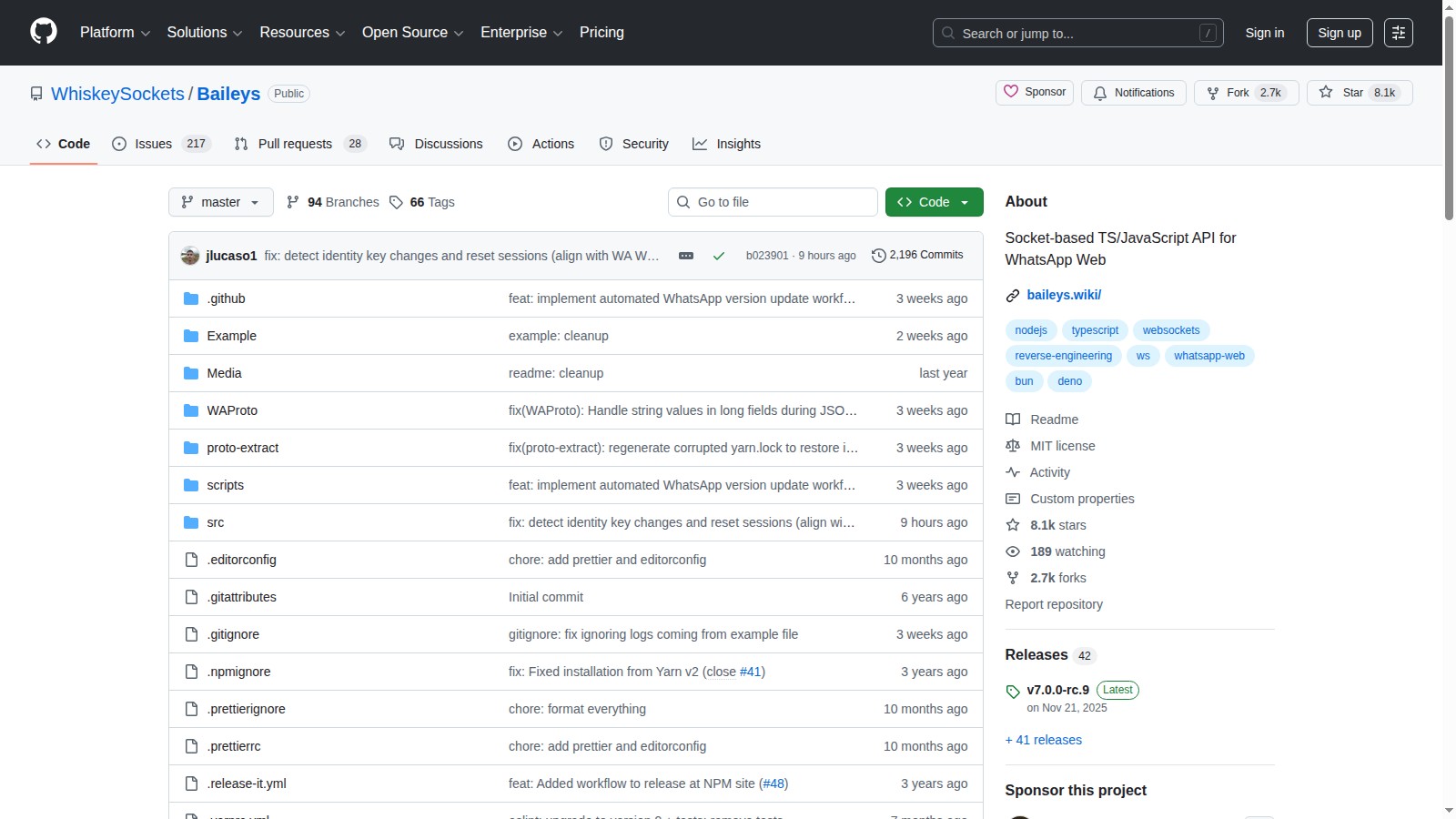
Important: This approach uses an unofficial library (Baileys) that reverse-engineers WhatsApp Web. While widely used, be aware that WhatsApp could theoretically detect and ban accounts using it. In practice, this is rare for normal usage.
Prerequisites
 System Requirements
Before connecting WhatsApp, make sure you have:
On Your Computer/Server:
- OpenClaw installed and working
- Node.js 18+ (required for WhatsApp plugin)
- At least 512MB free RAM
- Stable internet connection
On Your Phone:
- WhatsApp installed and activated
- Internet connection (WiFi or mobile data)
- Access to scan a QR code
Recommended Setup:
- VPS or always-on computer (for 24/7 availability)
- Backup your chat history (optional but recommended)
If you don't have OpenClaw installed yet, follow the quick setup guide first.
Step 1: Install WhatsApp Plugin
 Installing WhatsApp Plugin
OpenClaw's WhatsApp support comes via a plugin. Install it with:
openclaw plugins install whatsapp
This downloads and configures the Baileys library that handles WhatsApp Web connectivity.
Verify the installation:
openclaw plugins list
You should see whatsapp in the enabled plugins list.
If you see errors about missing dependencies, install them:
npm install -g @whiskeysockets/baileys
Step 2: Configure WhatsApp Channel
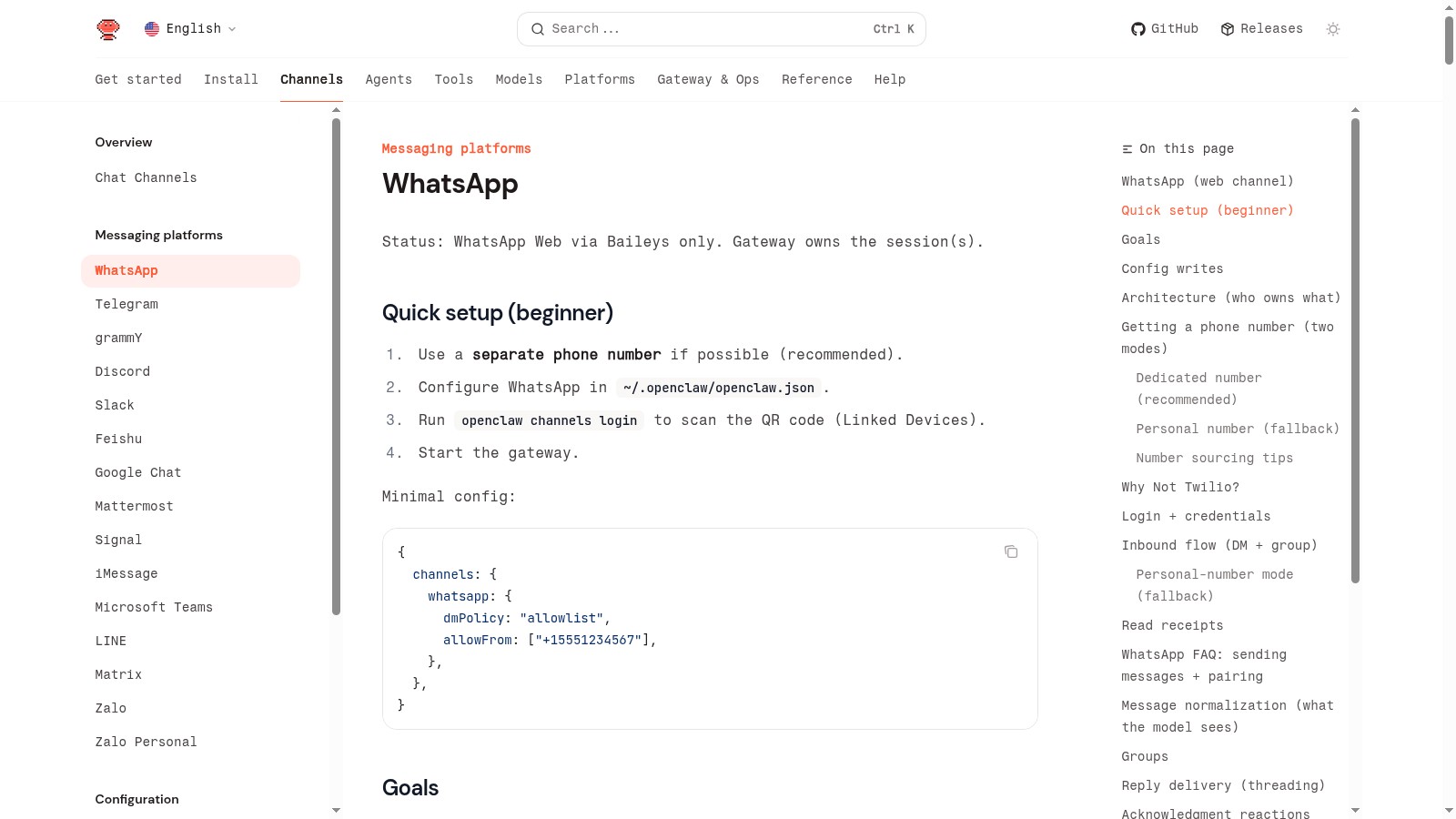 OpenClaw WhatsApp Config
Now let's configure OpenClaw to use WhatsApp. Edit your config file:
nano ~/.openclaw/openclaw.json
Add the WhatsApp channel configuration:
{
  "channels": {
    "whatsapp": {
      "enabled": true,
      "phoneNumber": "your-phone-number",
      "pairMode": "qr",
      "autoReconnect": true
    }
  }
}
Configuration options explained:
enabled: true- Activates WhatsApp channelphoneNumber- Your WhatsApp number with country code (e.g., "14155551234")pairMode: "qr"- Use QR code scanning (recommended)autoReconnect: true- Automatically reconnect if connection drops
Advanced options:
{
  "channels": {
    "whatsapp": {
      "enabled": true,
      "phoneNumber": "14155551234",
      "pairMode": "qr",
      "autoReconnect": true,
      "allowFrom": ["14155552345"],
      "groupPolicy": "allowlist",
      "groups": {
        "120363XYZ@g.us": {
          "allow": true,
          "requireMention": false
        }
      }
    }
  }
}
The allowFrom list restricts who can message your AI (using WhatsApp IDs). Leave it empty or use ["*"] to allow anyone.
Step 3: Start Gateway and Scan QR Code
 WhatsApp QR Code Scanning
Start the OpenClaw gateway:
openclaw gateway restart
Watch the logs:
openclaw gateway logs --follow
Within 10-20 seconds, you should see a QR code appear in your terminal. It looks like a square pattern of black and white blocks.
To scan the QR code:
- Open WhatsApp on your phone
- Tap the three dots (⋮) menu
- Select "Linked Devices"
- Tap "Link a Device"
- Point your camera at the QR code in the terminal
If the terminal QR code is too small, you can also access it via the web interface:
http://localhost:18789/whatsapp/qr
Replace localhost with your server IP if running remotely.
Step 4: Verify Connection
 WhatsApp Connected Status
After scanning, you should see confirmation messages in the logs:
✓ WhatsApp connected
✓ Syncing chats...
✓ Ready to receive messages
Test the connection by messaging yourself:
- Open WhatsApp on your phone
- Send a message to any contact or to yourself (save your number as a contact)
- Type: "Hello, are you there?"
If everything is working, OpenClaw will respond via WhatsApp within a few seconds.
Check connection status:
openclaw channels status
You should see WhatsApp listed as "connected" with your phone number.
Step 5: Configure Message Handling
 WhatsApp Message Settings
By default, OpenClaw responds to all incoming WhatsApp messages. Let's configure smarter behavior:
Only respond to specific contacts:
{
  "channels": {
    "whatsapp": {
      "allowFrom": [
        "14155551234@s.whatsapp.net",
        "14155555678@s.whatsapp.net"
      ]
    }
  }
}
WhatsApp IDs use the format: phonenumber@s.whatsapp.net
Ignore group messages:
{
  "channels": {
    "whatsapp": {
      "groupPolicy": "disabled"
    }
  }
}
Allow specific groups only:
{
  "channels": {
    "whatsapp": {
      "groupPolicy": "allowlist",
      "groups": {
        "120363XYZ@g.us": {
          "allow": true,
          "requireMention": true
        }
      }
    }
  }
}
To find a group ID, check the logs when a message arrives in that group.
With requireMention: true, the bot only responds when you mention it explicitly in the group (though WhatsApp doesn't have @mentions like Telegram/Discord, so this works via keywords in mentionPatterns).
Step 6: Use WhatsApp Features
 WhatsApp AI Features
Now that your WhatsApp is connected, here's what you can do:
Send and receive messages:
- Normal text messages work both ways
- Conversations maintain context across messages
- The AI remembers what you talked about
Share files:
- Send images and the AI can analyze them
- Send documents (PDFs, text files) and ask questions about them
- Voice messages are transcribed if you configure speech-to-text
Group assistance:
- Add OpenClaw to group chats for team help
- Automatically answer common questions
- Fetch information when mentioned
Automation:
- Schedule reminders that arrive as WhatsApp messages
- Set up notifications from other systems
- Automate responses to common inquiries
Example use cases:
You: Remind me to call mom in 2 hours
AI: ✓ I'll message you in 2 hours to remind you to call mom.

[2 hours later]
AI: 🔔 Reminder: call mom
You: [sends photo of receipt]
What was the total?

AI: The receipt shows a total of `$47`.23 paid via Visa ending in 1234.
Conclusion
 WhatsApp and OpenClaw Together
You've successfully connected OpenClaw to WhatsApp! Your AI assistant now lives in your most-used messaging app, available anytime you need it.
The power of this setup is the seamless integration with your daily workflow. No need to switch apps or remember to check a separate interface - your AI assistant is right there in your WhatsApp messages.
Next steps to explore:
- Set up automated reminders delivered via WhatsApp
- Connect additional channels (Telegram, Discord, Signal) to the same OpenClaw instance
- Create custom automation for your specific needs
- Configure voice message transcription for hands-free interaction
Troubleshooting tips:
If messages stop working, check:
- OpenClaw gateway is still running (
openclaw gateway status) - Your phone has internet connection
- WhatsApp Web session hasn't expired (rescan QR if needed)
- Check logs for error messages (
openclaw gateway logs)
Join the OpenClaw Discord for help and to share your WhatsApp automation ideas!
Frequently Asked Questions
 WhatsApp Integration FAQ
Is this safe? Will WhatsApp ban my account?
OpenClaw uses the same WhatsApp Web protocol that browsers use. WhatsApp Business API exists for official bots. For personal use with reasonable message volumes, bans are rare. However, WhatsApp's terms prohibit automation, so use at your own risk.
Why does my phone need internet?
WhatsApp Web is a mirror of your phone's WhatsApp. Your phone is the primary device, and Web/OpenClaw connects through it. If your phone loses internet, WhatsApp Web (and OpenClaw) disconnect.
Can I use WhatsApp Business?
Yes! The setup works with both personal WhatsApp and WhatsApp Business accounts. Business accounts have the same functionality.
What happens if OpenClaw disconnects?
With autoReconnect: true, OpenClaw will automatically try to reconnect. If the session expires (after ~7 days of inactivity), you'll need to rescan the QR code.
Can multiple people use the same WhatsApp-connected OpenClaw?
Yes, but be careful - they'll be messaging as you since it's your WhatsApp account. Use allowFrom to restrict access, or set up separate OpenClaw instances for different users.
How do I disconnect WhatsApp from OpenClaw?
On your phone: WhatsApp → Linked Devices → find the OpenClaw session → "Log out". Or stop the OpenClaw gateway and delete the session file: ~/.openclaw/whatsapp-session/
More Articles
The Ultimate OpenClaw AWS Setup Guide

The definitive guide to setting up OpenClaw on AWS. Includes spot instance configuration, cost optimization, and step-by-step instructions.
Building AI Workflows with Tool Chaining in OpenClaw
Master the art of chaining tools and function calls to build powerful multi-step AI automation workflows—from data extraction to content generation and deployment.
Cost Optimization Guide for Self-Hosted AI Assistants: Run Claude on a Budget
Practical strategies to reduce API costs for self-hosted AI assistants—smart model routing, caching, batching, and OpenClaw-specific optimizations to run Claude affordably.