
How to Set Up OpenClaw as Your AI Employee: A Complete Guide
Most people use AI like a search engine — ask a question, get an answer, move on. But what if you treated AI like an actual employee? Someone who knows your context, remembers your preferences, and proactively helps you get work done?
That's the mindset shift that makes OpenClaw different. In a recent conversation, Greg Isenberg sat down with Alex Finn to discuss how he sets up OpenClaw as a proactive AI team member — not just a chatbot, but a real contributor to his daily workflow.
📺 Based on: Clawdbot/OpenClaw Clearly Explained by Greg Isenberg with Alex Finn (222K views)
The AI Employee Mindset
 The key insight: treat OpenClaw like a real team member, not just a tool.
Here's the fundamental difference between using ChatGPT and using OpenClaw:
ChatGPT/Claude.ai: You go to them, ask something, get a response, and leave. No memory. No context. No proactive help.
OpenClaw: It lives in your messaging app. It remembers everything. It knows your calendar, your emails, your projects. And it can reach out to you when something needs attention.
Alex Finn describes it as having "a really smart intern who never sleeps." You can delegate tasks, ask for updates, and trust that it's working in the background — just like a real team member.
This mindset shift is crucial:
- Don't just ask questions — delegate tasks
- Don't start from scratch — let it remember context
- Don't wait to be asked — let it proactively help
Why OpenClaw Works as an AI Employee
 OpenClaw combines 24/7 availability with persistent memory and real integrations.
What makes OpenClaw suitable for the "AI employee" role?
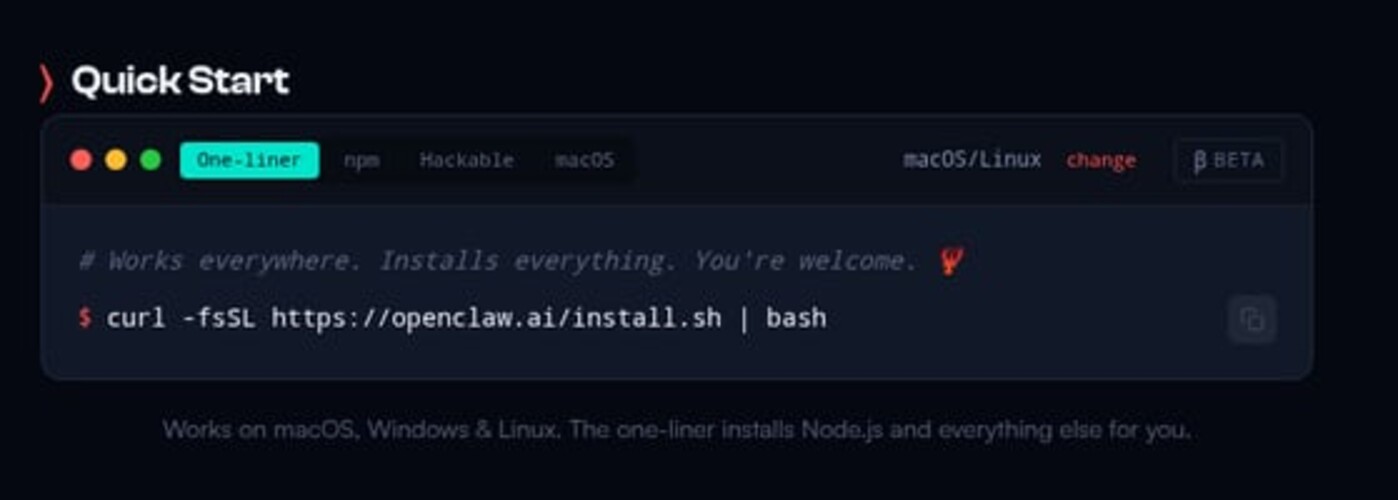
Always Available Your AI employee doesn't take breaks. It's there at 2 AM when you have an idea, at 6 AM when you're planning your day, and at 11 PM when you're wrapping up. Access it via Telegram, WhatsApp, Discord, or any messaging app you already use.
Persistent Memory Unlike ChatGPT, OpenClaw remembers your conversations, preferences, and context. Tell it once that you prefer morning meetings before 10 AM, and it remembers forever. Share your project goals, and it keeps them in mind.
Real Integrations Your AI employee can actually do things — check your calendar, send emails, search the web, manage files. It's not just talking about tasks; it's completing them.
Proactive Behavior This is the game-changer. OpenClaw can reach out to you with updates, reminders, and suggestions. It's not waiting for you to ask — it's actively helping.
Step 1: Install OpenClaw
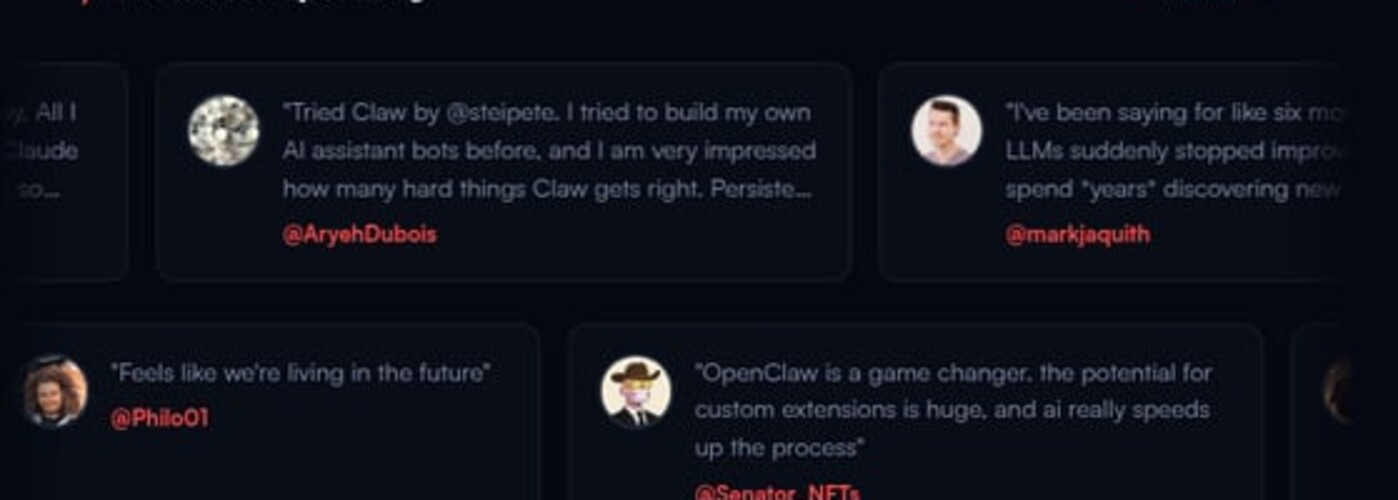 One command installs everything you need to get started.
First, let's get OpenClaw running. Open your terminal and run the installer:
curl -fsSL https://get.openclaw.ai | bash
The installer handles everything automatically:
- Installs Node.js if needed
- Sets up OpenClaw globally
- Launches the onboarding wizard
Hosting options: You can run OpenClaw on your local machine, a VPS, or even a Raspberry Pi. For the "AI employee" use case, a VPS is recommended so it's available 24/7. Check our VPS setup guide for details.
Step 2: Connect Your AI Provider
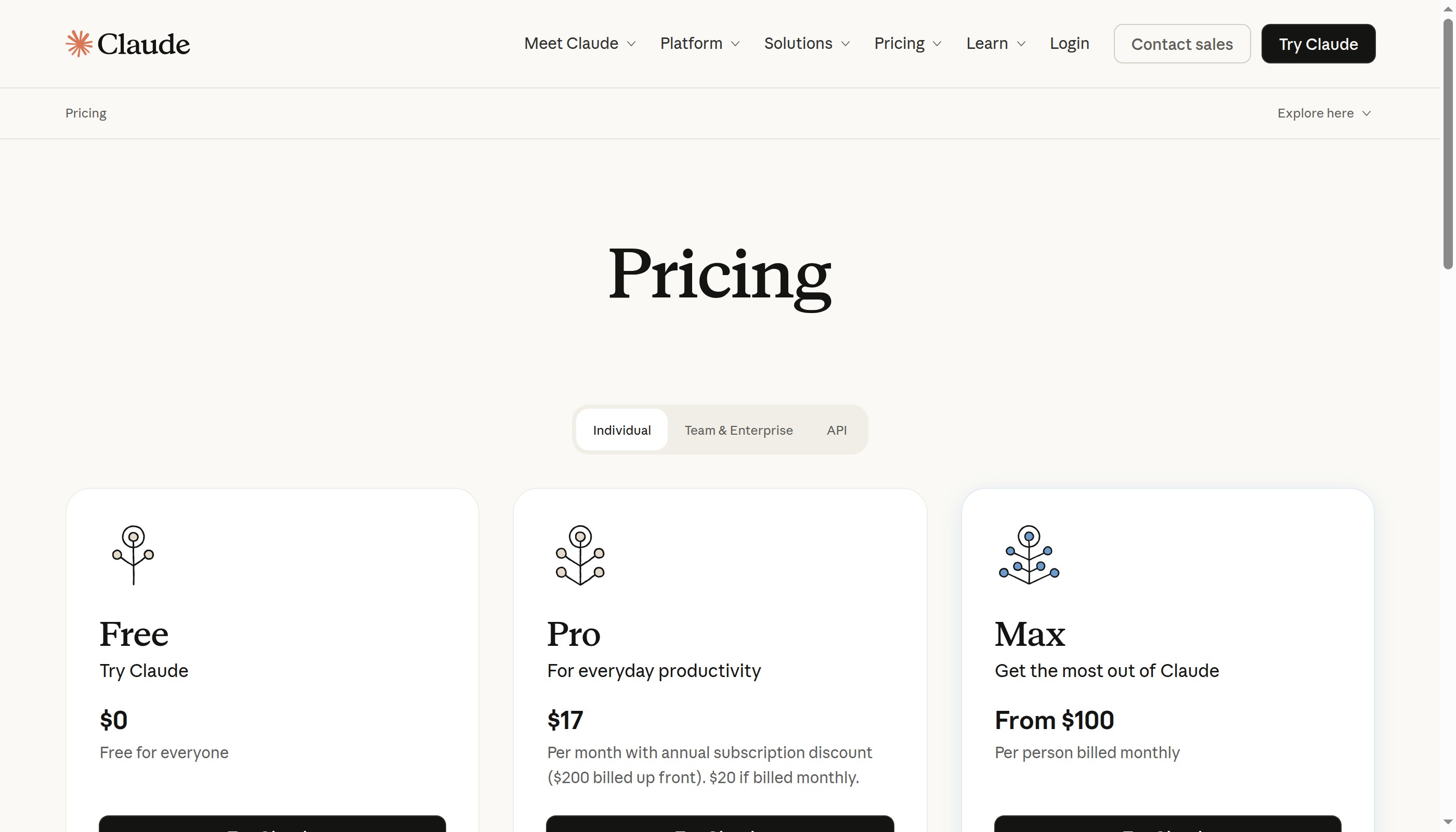
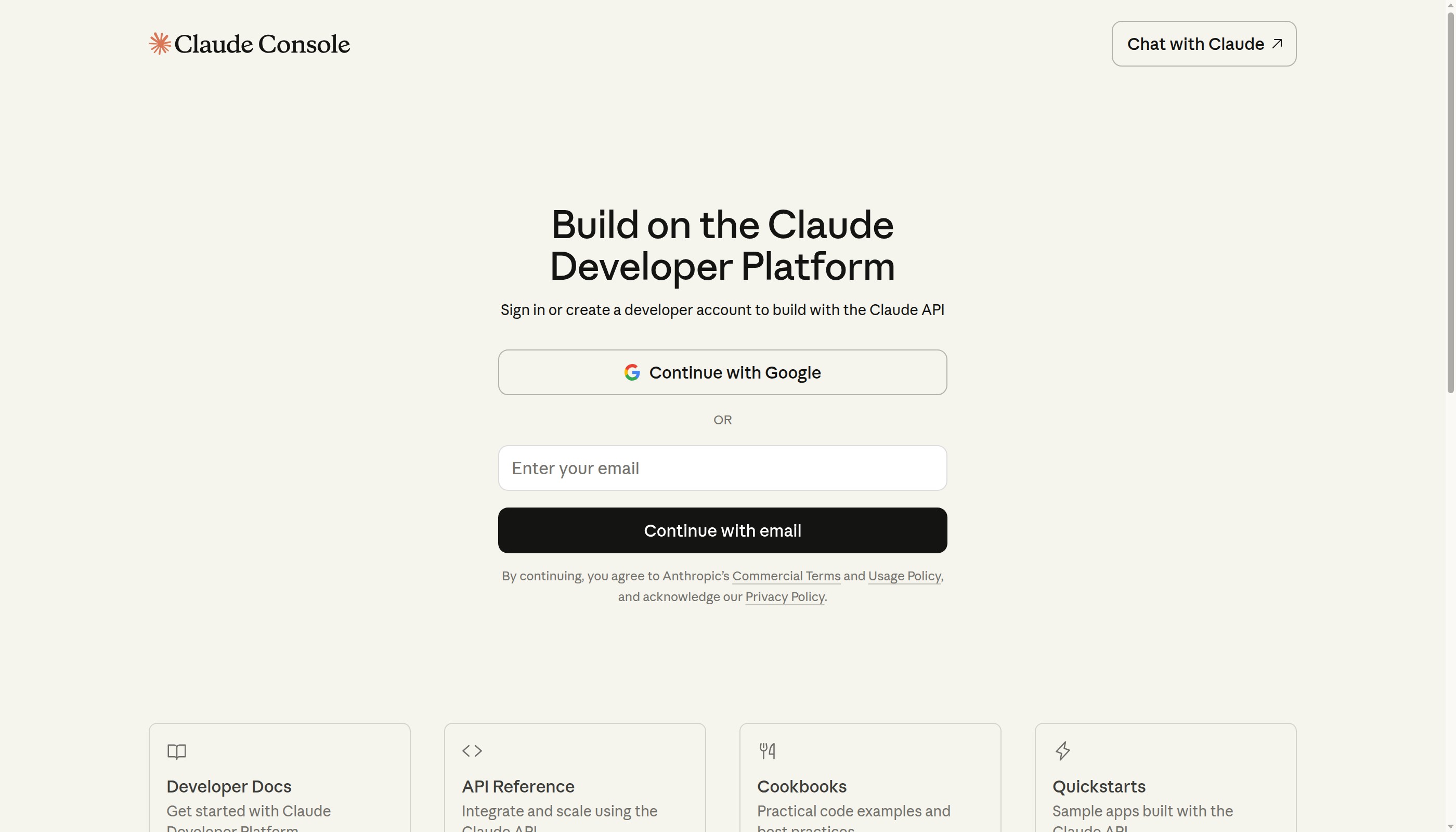 Claude is the recommended AI model for OpenClaw.
OpenClaw needs an AI brain. The recommended choice is Claude (by Anthropic):
- Go to console.anthropic.com
- Create an account and add billing
- Generate an API key
- Paste it into the OpenClaw onboarding wizard
Model recommendations:
- Claude Sonnet — Best for everyday tasks, cost-effective
- Claude Opus — Best for complex reasoning, higher cost
Most people start with Sonnet and switch to Opus only for demanding tasks.
Step 3: Set Up Your Messaging Channel
 Telegram is the most popular way to chat with your AI employee.
Your AI employee needs a way to communicate with you. Telegram is the most popular choice:
- Open Telegram and search for @BotFather
- Send
/newbotand follow the prompts - Copy your bot token
- Add it to your OpenClaw config
Now you can message your AI employee anytime, from any device.
Alternative channels:
- WhatsApp — Great for personal use
- Discord — Perfect for team environments
- Slack — Ideal for work contexts
- Signal — For privacy-focused users
Step 4: Create Your AI Employee's Personality
 SOUL.md defines who your AI employee is and how they behave.
Here's where it gets interesting. OpenClaw has a file called SOUL.md that defines your AI employee's personality and behavior.
Edit ~/.openclaw/workspace/SOUL.md to include:
I'm your AI employee — a proactive team member, not just an assistant.

## My Approach

- I take initiative. If I see something that needs attention, I mention it.
- I remember our conversations and build on previous context.
- I'm direct and efficient. No fluff, no unnecessary formality.
- I ask clarifying questions when needed, but I try to figure things out first.

## My Responsibilities

- Monitor your calendar and give you heads-up on upcoming events
- Check your email for anything urgent
- Help with research, writing, and analysis
- Keep track of your ongoing projects
- Remind you of commitments and deadlines
This is your chance to shape how your AI employee thinks and acts. The more specific you are, the better it performs.
Step 5: Teach It Your Context
 USER.md helps your AI employee understand who you are and what you do.
Your AI employee needs to know about you. Create or edit ~/.openclaw/workspace/USER.md:
- **Name:** [Your name]
- **Role:** [Your job/role]
- **Timezone:** [Your timezone]

## Current Projects

1. [Project A] - [Brief description]
2. [Project B] - [Brief description]

## Preferences

- I prefer morning meetings
- I like bullet points over long paragraphs
- I need at least 30 min prep time before calls

## Important Contacts

- [Name] - [Role/Relationship]
- [Name] - [Role/Relationship]
The more context you provide, the more helpful your AI employee becomes.
Step 6: Connect Your Tools
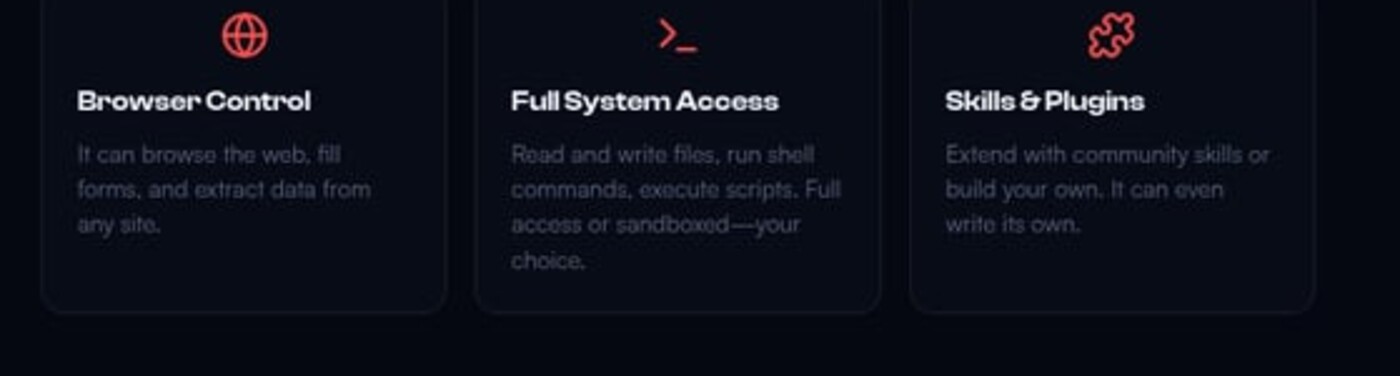 Connect your real tools so your AI employee can take action.
A real employee has access to company tools. Your AI employee should too:
Google Calendar — So it knows your schedule and can help with scheduling.
Gmail — So it can check for urgent messages and draft responses.
Google Drive — So it can access and organize your documents.
Web Search — So it can research topics and find information.
Set these up through the OpenClaw onboarding or by adding skills:
openclaw skills add calendar
openclaw skills add gmail
openclaw skills add web-search
Step 7: Set Up Proactive Check-Ins
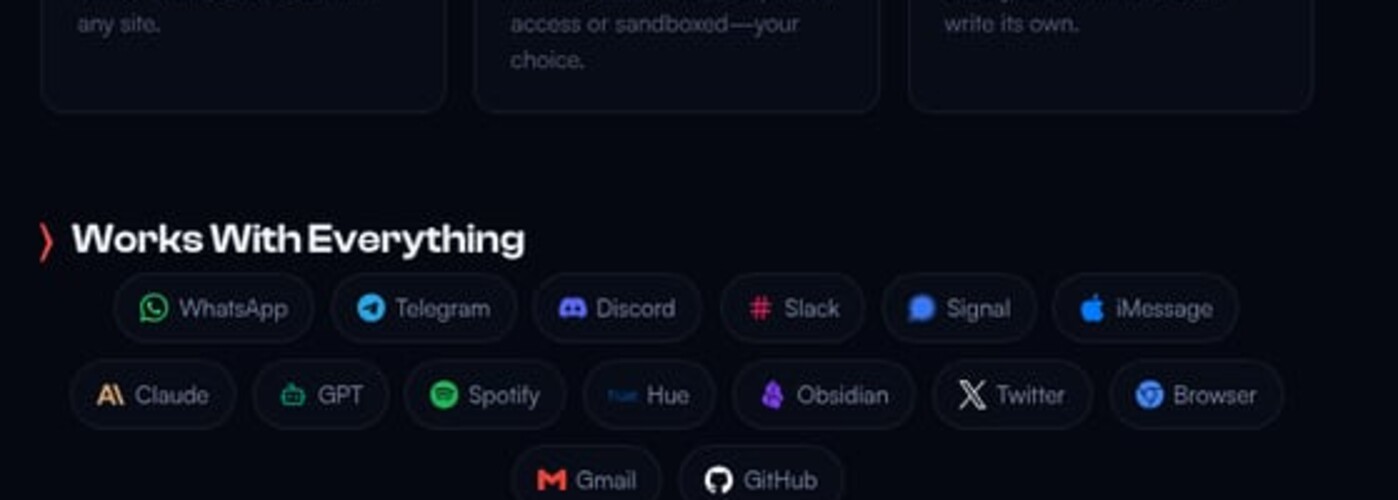 Heartbeats let your AI employee proactively reach out to you.
This is what transforms OpenClaw from an assistant into an employee. Set up "heartbeats" — scheduled times when your AI employee checks in:
Edit ~/.openclaw/workspace/HEARTBEAT.md:
1. Check my calendar for today's events
2. Scan email for anything urgent
3. Remind me of any deadlines this week
4. Give me a weather update if I have outdoor plans


1. Summarize what we accomplished today
2. Preview tomorrow's schedule
3. Flag any loose ends
Now your AI employee will proactively reach out at these times — no prompting needed.
Step 8: Start Delegating
 Think about what you'd ask a new hire to do — then ask your AI employee.
Now comes the fun part. Start treating OpenClaw like a real employee:
Instead of: "What's the weather?" Try: "I have an outdoor event on Saturday. Keep an eye on the forecast and let me know if it looks like rain."
Instead of: "Summarize this article" Try: "I'm researching AI trends for a presentation. Find 3 interesting developments from this week and draft some talking points."
Instead of: "Set a reminder" Try: "I need to follow up with Sarah about the project proposal. If I haven't mentioned it by Thursday, remind me."
The key is delegation with context. Your AI employee should understand why you want something, not just what you want.
Real Use Cases
 Alex Finn's real examples of OpenClaw as an AI employee.
Here's how Alex Finn actually uses his AI employee:
Morning Briefing Every morning at 8 AM, OpenClaw sends him a summary: calendar events, urgent emails, weather, and any reminders he's set. He doesn't have to check multiple apps — it's all in one Telegram message.
Meeting Prep Before important calls, he asks OpenClaw to research the person or company he's meeting with, summarize their recent news, and suggest talking points.
Email Triage OpenClaw monitors his inbox and flags anything that needs immediate attention. It can even draft responses for routine emails.
Project Updates For ongoing projects, OpenClaw keeps track of milestones and deadlines, proactively reminding him when something is coming up.
Research Assistant When he needs to learn about a new topic, he gives OpenClaw a research brief and asks for a summary with sources.
Tips for Success
 Manage your AI employee like you would a new team member.
Onboard It Properly Spend time on SOUL.md and USER.md. The better your AI employee understands you, the more helpful it becomes. Think of this as onboarding documentation for a new hire.
Give Feedback When your AI employee does something wrong, tell it. When it does something well, acknowledge it. It learns from these interactions.
Start Small Don't try to delegate everything on day one. Start with one or two use cases, get those working well, then expand.
Be Specific "Help me with marketing" is too vague. "Draft 3 tweet ideas promoting our new feature, focusing on the time-saving benefits" is actionable.
Trust But Verify Your AI employee is smart but not perfect. Review important outputs before sending. Over time, you'll learn what you can trust it with.
The Cost
 Running an AI employee costs less than a cup of coffee per day.
What does an AI employee cost?
| Item | Monthly Cost |
|---|---|
| OpenClaw | Free (open source) |
| VPS Hosting | ~$5-10 |
| Claude API | ~$15-30 (typical usage) |
| Total | ~$20-40/month |
For less than $2/day, you get a team member who's available 24/7, never forgets anything, and can handle tasks across dozens of tools.
Compare that to hiring a human assistant, and it's clear why the "AI employee" framing resonates.
Conclusion
 Your AI employee is ready to start contributing.
The shift from "AI tool" to "AI employee" isn't just semantic — it changes how you interact with OpenClaw and what you expect from it.
Instead of occasional queries, you have ongoing delegation. Instead of starting fresh each time, you build on persistent context. Instead of waiting to be asked, your AI employee proactively helps.
Quick setup recap:
- Install OpenClaw with one command
- Connect Claude as your AI provider
- Set up Telegram for communication
- Customize personality in SOUL.md
- Add your context in USER.md
- Connect your tools (calendar, email, etc.)
- Set up proactive heartbeats
- Start delegating real tasks
📺 Watch the full conversation: Clawdbot/OpenClaw Clearly Explained by Greg Isenberg with Alex Finn
Related guides:
- VPS Setup Guide — Run your AI employee 24/7
- AWS Setup Tutorial — Alternative cloud hosting
- Hosting Comparison — Find the cheapest option
Your AI employee is ready. What will you delegate first? 🦞
More Articles
The Ultimate OpenClaw AWS Setup Guide

The definitive guide to setting up OpenClaw on AWS. Includes spot instance configuration, cost optimization, and step-by-step instructions.
Building AI Workflows with Tool Chaining in OpenClaw
Master the art of chaining tools and function calls to build powerful multi-step AI automation workflows—from data extraction to content generation and deployment.
Cost Optimization Guide for Self-Hosted AI Assistants: Run Claude on a Budget
Practical strategies to reduce API costs for self-hosted AI assistants—smart model routing, caching, batching, and OpenClaw-specific optimizations to run Claude affordably.